
How to Sync Your Roster to Your Phone/Calendar
How to Sync Your Roster to Your Calendar
You can add your shift roster to Google Calendar, Apple Calendar (iCal), Outlook, or any calendar app that supports subscriptions. Your calendar will automatically update when your roster or leave changes.
Step 1: Get Your Calendar Link
- Go to My Shifts (Sidebar → My Shifts)
- Scroll down to the Live Calendar Sync section
- You'll see subscription URLs for different calendar apps, each with a one-click button
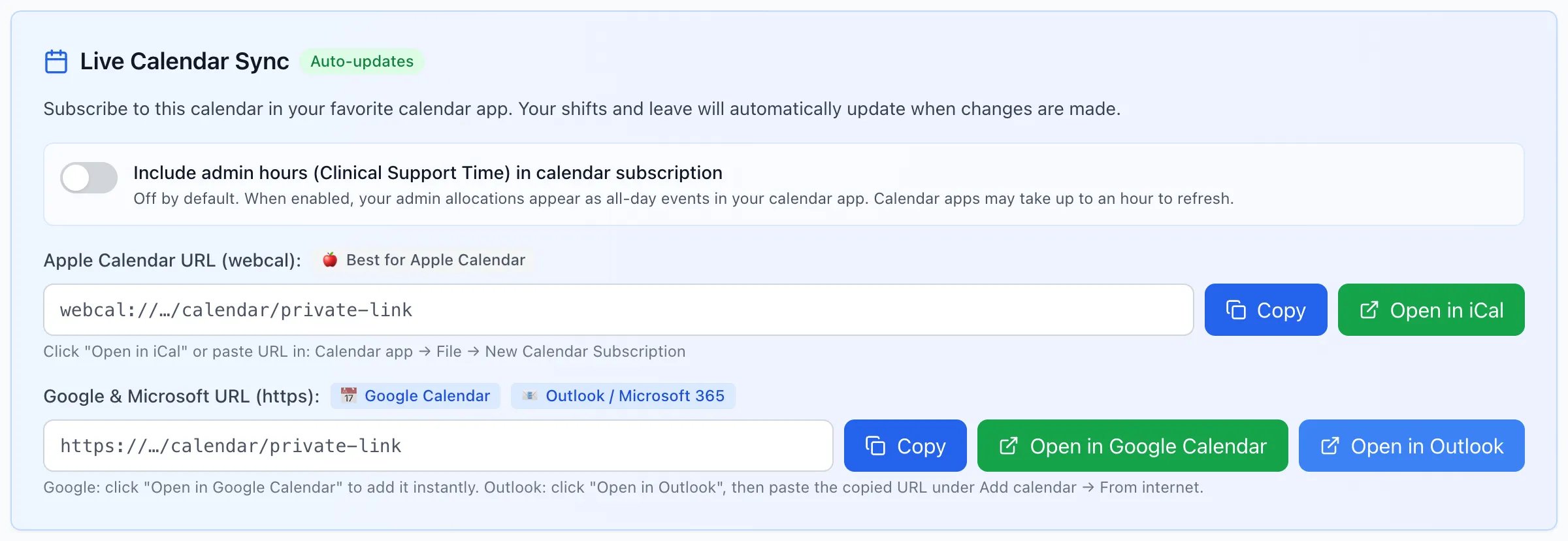
Step 2: Add to Your Calendar App
Google Calendar (one click):
- Next to the Google & Microsoft URL field, click Open in Google Calendar
- Confirm Add this calendar? in the tab that opens (make sure you're signed into the right Google account)
- Your shifts will appear within a few hours (Google refreshes periodically)
If the button doesn't work: copy the URL, then in Google Calendar go to Settings → Add calendar → From URL, paste it, and click Add calendar.
Apple Calendar / iCal (iPhone/Mac):
- Click Open in iCal next to the Apple Calendar URL (webcal) field — this hands the link straight to your device's Calendar app
- Confirm the subscription when your Calendar app prompts you
- Shifts appear almost immediately
Manual alternative: copy the webcal link, then on iPhone go to Settings → Calendar → Accounts → Add Account → Other → Add Subscribed Calendar; on Mac use File → New Calendar Subscription.
Microsoft Outlook:
- Copy the Google & Microsoft URL
- Click Open in Outlook to jump straight to Outlook's Add Calendar page
- Paste the copied URL there under Add calendar → From internet and give it a name
Microsoft doesn't support pre-filling the URL via a link, so this still needs a manual paste — the button just saves you navigating Outlook's menus.
Important Notes
- Your calendar link is private – don't share it with others
- The calendar updates automatically (usually within 1 hour)
- Only confirmed shifts appear for regular staff
- Approved and pending leave appear as all-day events (no extra setup; existing subscription links pick this up on the next refresh)
- Admin hours (Clinical Support Time) are optional — turn them on from Live Calendar Sync on My Shifts if you want them included
- If you regenerate your calendar token, the old link stops working – update your calendar subscription with the new link
- Shows shifts and leave from 3 months back through 6 months forward