
First-Time Setup: Admin Checklist
This checklist walks you through setting up Intelligent Roster for the first time. Expect 2–4 hours depending on your organization size.
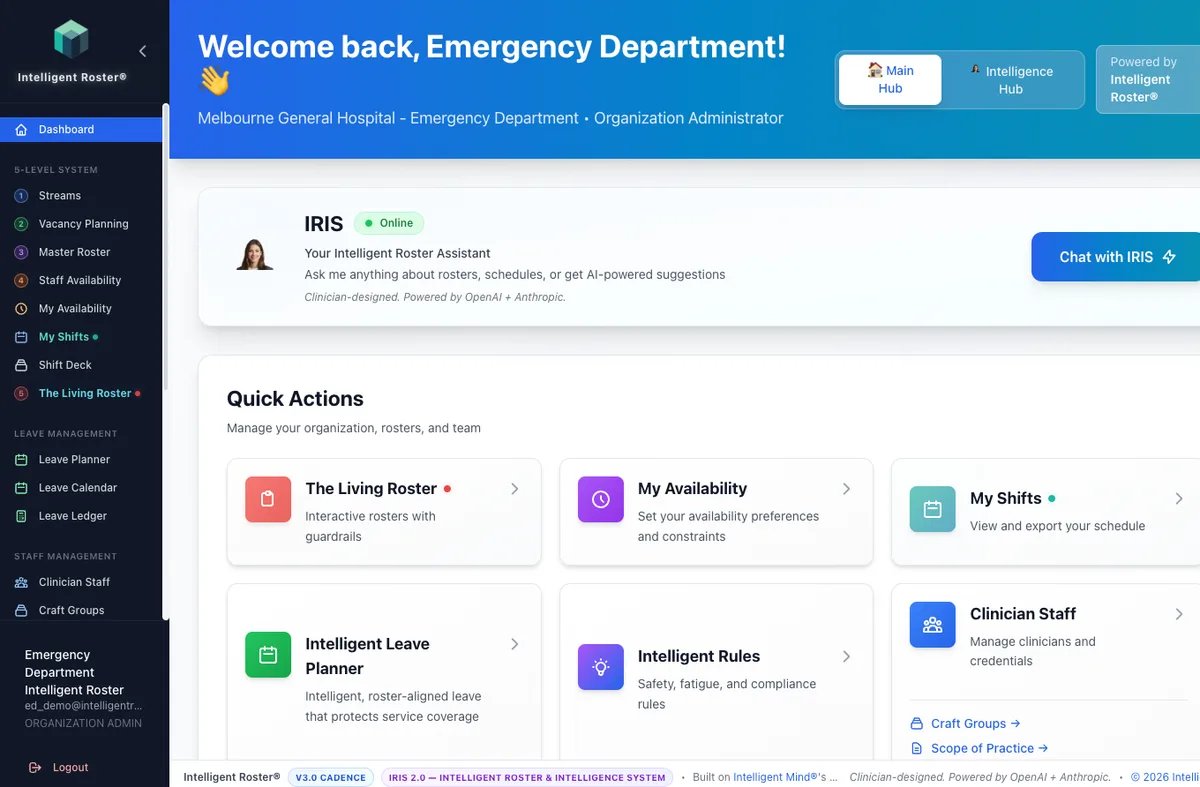
Navigation note: Org-wide settings live under Sidebar → Organizations → [your org] → Settings (URL:
/admin/organizations/:id?tab=settings). Streams, Craft Groups, and Scopes are separate sidebar items — not nested under a single "Organization Settings" menu.Learning note: On the Dashboard Main Hub, use Learn Intelligent Roster to open public guides, pro tips, and walkthroughs in a new tab while keeping your dashboard session open.
Pre-Setup: Gather Information
Before you start, collect:
- ✅ Departments/Streams: List all departments and their shift times (e.g., "ED - 7am–3pm")
- ✅ Craft groups: All craft groups you employ (e.g., RN, EN, Doctor, Physio)
- ✅ Staff list: CSV with name, email, craft group, department, start date
- ✅ Compliance rules: Rest hours, max consecutive shifts, safety rules
- ✅ Org timezone: Your timezone (e.g., AEST for Australian Eastern)
Phase 1: Organization Setup (30 mins)
1. Create Organization
- Log in as Organization Admin
- Go to Sidebar → Organizations → select your org → Settings tab
- Enter:
- Organization Name (e.g., "City Hospital ED")
- Timezone (e.g., "Australia/Sydney")
- Roster Cycle (e.g., 4 weeks, starts Monday)
- Contracted Days Per Week (e.g., 5 for Mon-Fri; used for leave deduction and payroll)
- Operating Days Per Week (e.g., 7 if open 7 days; used for coverage analytics)
- Safety Standards (rest hours, consecutive shift limits)
- Click Save
✅ Checkpoint: Organization created and settings saved
2. Add Logo (Optional)
- Organizations → your org → Settings tab → Branding section
- Upload your hospital/clinic logo
- Click Save
✅ Checkpoint: Logo uploaded (not critical, skip if needed)
Phase 2: Define Your Roster Structure (1–2 hours)
This is the foundation—take your time here.
3. Create Streams (Level 1)
What: Departments + shift times
- Go to Sidebar → Streams (
/streams) - For each department + shift combination, click Add Stream:
- Name: e.g., "ED - Morning", "Ward 3A - Evening"
- Shift Pattern: Start time, end time (e.g., 7:00 AM – 3:00 PM)
- Click Save
Time estimate: 10–15 mins
✅ Checkpoint: All streams created
Example for small ED:
- ED - Day (7am–3pm)
- ED - Evening (3pm–11pm)
- ED - Night (11pm–7am)
4. Create Craft Groups (Level 2 - Part 1)
What: Craft groups
- Go to Sidebar → Craft Groups (
/craft-groups) - Click Add Craft Group for each craft group:
- RN (Registered Nurse)
- EN (Enrolled Nurse)
- Doctor
- Etc.
- Click Save
Time estimate: 5 mins
✅ Checkpoint: All craft groups created
5. Create Scopes of Practice (Optional, Level 2 - Part 2)
What: Specializations (e.g., Trauma, ALS)
- Go to Sidebar → Scope of Practice (
/scopes) - Click Add Scope for each credential:
- Trauma
- Advanced Life Support (ALS)
- Pediatrics
- Etc.
- Click Save
Time estimate: 5 mins (skip if no specializations)
✅ Checkpoint: Scopes added (optional)
6. Define Safety Rules
- Go to Sidebar → AI Rules (Organizations → Intelligent Rules → Safety Standards)
- Set:
- Min rest between shifts: e.g., 8 hours
- Max consecutive days: e.g., 7 days
- Max consecutive nights: e.g., 5 nights
- Min days between night sequences: e.g., 2 days
- Click Save
✅ Checkpoint: Safety standards configured
Phase 3: Add Staff (1–2 hours)
7. Add Clinician Staff
Option A: Manual (small teams <20)
- Go to Staff Management
- Click Add Staff
- For each person:
- Name, Email, Phone (optional)
- Craft Group (required)
- Streams (assign 1+ streams they work in)
- Scopes (optional)
- Click Save
Time estimate: ~2 mins per person
Option B: Bulk Import (larger teams 20+)
- Prepare CSV:
name, email, craft_group, streams, scopes - Go to Staff Management → Import
- Upload CSV
- Review mapping
- Click Import
Time estimate: ~15 mins prep + 2 mins import
✅ Checkpoint: All staff added and assigned to craft groups
Phase 4: Create Master Rosters (1–2 hours)
8. Create Level 3 Master Roster (Per Stream)
For each stream, create a repeating 4-week template:
- Click Level 3: Master Roster
- Select stream (e.g., "ED - Day")
- Use Excel-style bulk assign or manual entry to assign staff to shifts
- For each day:
- Add shifts based on vacancies (Level 2)
- Assign staff using rotation patterns
- Click Fairness Check
- Review fairness; adjust if needed
- Click Save Master Roster
Example for ED - Day (5 RNs/day, 7 days/week):
- Week 1: Nurses A, B, C, D, E
- Week 2: Nurses C, D, E, F, G
- Week 3: Nurses E, F, G, H, I
- Week 4: Nurses G, H, I, A, B
Time estimate: 30–60 mins per stream (faster after first one)
✅ Checkpoint: Master rosters created and fairness checked for all streams
Phase 5: Publish First Roster (30 mins)
9. Create First Living Roster (Level 5)
- Click Level 5: The Living Roster
- Select stream (start with one)
- Select pay period dates
- Click Apply Master Roster
- Click Generate with IRIS — review the preview and apply
- Click Fill Gaps if unfilled slots remain
- Run Roster Health — review fairness and compliance
- Fix any violations
- Click Publish
✅ Checkpoint: First roster published to staff
Note on moving staff: If you need to relocate a staff member to another shift after creation, use Move Assignment (right-click on a shift, select "Move Assignment"). This is faster than manually deleting and recreating assignments.
10. Notify Staff
Send email to staff:
- "Your first roster is live!"
- Link to their roster view
- How to set availability for next period
- Contact info for issues
✅ Checkpoint: Staff notified and can see roster
Phase 6: First Real Roster Cycle (Ongoing)
11. Level 4 — availability & leave (separate workflows)
- Notify staff to set My Availability (preferences) — not holidays
- Tell staff to submit time off via Leave Planner
- Review Staff Availability grid for preferences and gaps
- Approve leave in Leave Planner (not in Staff Availability)
- Use Availability Audit before building the next Living Roster
✅ Checkpoint: Availability reviewed and leave approved where needed
12. Generate and Publish Next Roster (Level 5)
- Use IRIS AI or your master template
- Audit fairness + compliance
- Publish
✅ Checkpoint: Second roster published
Success Checklist
After setup, verify:
- ✅ All streams created (departments × shifts)
- ✅ All staff added and assigned to streams + craft groups
- ✅ Safety standards configured
- ✅ Master rosters created and tested
- ✅ First roster published to staff
- ✅ Staff can log in and see roster
- ✅ Admin can generate rosters (manual or IRIS)
- ✅ Fairness audits reviewed
- ✅ Compliance warnings understood
Common Pitfalls to Avoid
❌ Creating too many streams: Start with what you have now (can add later)
❌ Forgetting craft group assignment: Staff can't be rostered without one
❌ Skipping fairness audit: Publish unfair rosters = unhappy staff
❌ No communication: Staff confused if they don't know what's coming
❌ Too complex safety rules: Start simple; add rules as you learn
Next Steps
- ✅ Review Level 1–5 Admin Guides for detailed workflow
- ✅ Train roster builders on Level 5 management
- ✅ Monitor fairness audits for first 3 rosters
- ✅ Gather staff feedback (use Feedback feature)
- ✅ Refine setup based on lessons learned
Still Stuck?
- 📖 Open Learn Intelligent Roster from the Dashboard for admin guides, roster-builder workflows, and pro tips
- 💬 Submit Support Ticket or contact our support team
- 🎥 Watch onboarding videos (if available in your org)