
First-Time Setup: Staff Checklist
Welcome to Intelligent Roster! This quick checklist gets you started in under 15 minutes.
Phase 1: Log In & Explore (5 mins)
1. Log In
- Go to your organisation's Intelligent Roster URL (ask your admin if unsure)
- Enter your work email
- If your org uses SSO: you'll be redirected to Microsoft/Google (or your corporate login) — authenticate there. No separate Intelligent Roster password or MFA setup needed.
- If you use email + password: enter your password, then complete MFA only if your organisation requires it (not all orgs do — SSO orgs skip this entirely)
- Click Log In (password users) or complete SSO at your identity provider
✅ Checkpoint: You're in!
2. Understand Your Dashboard
You'll see:
- Your Stream: The department/shift you're assigned to (e.g., "ED - Evening")
- Your Craft Group: Your job role (e.g., "RN")
- Calendar: Your shifts for the current pay period
- Notifications: Updates from your admin
- IRIS + Learn: Chat with IRIS for in-app help, or open Learn Intelligent Roster in a new tab for guides and pro tips
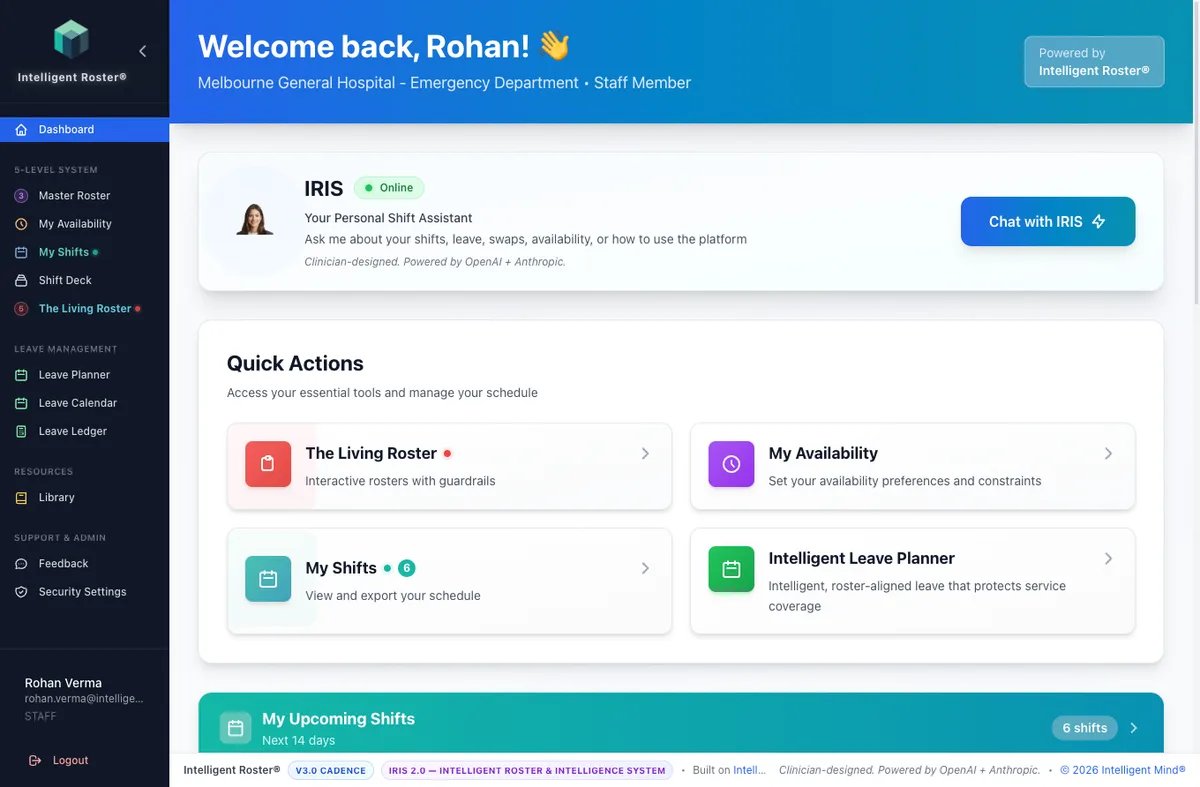
Click around and get familiar.
✅ Checkpoint: Dashboard explored
Phase 2: Set Your Profile (5 mins)
3. Review Your Employee Details
- Click Profile (top right)
- Click Employee Details
- Check:
- Name: Correct?
- Email: Correct?
- Craft Group: Correct? (e.g., RN, EN)
- Stream(s): Correct?
- Scopes of Practice: Any certifications? (e.g., Trauma, ALS)
- If anything is wrong, contact your admin
✅ Checkpoint: Profile reviewed
4. Set Up Multi-Factor Authentication (password users only)
Skip this step if your organisation uses SSO — your corporate login already handles authentication.
For email + password accounts, when your admin requires MFA:
- Click Profile
- Click Security Settings
- Click Enable MFA
- Follow the prompts (usually scan a QR code)
- Save recovery codes in a safe place
✅ Checkpoint: MFA enabled (if required for your role)
Phase 3: View Your Roster (2 mins)
5. Check Your Published Shifts
- Go to Sidebar → My Shifts (or The Living Roster for the full ward view)
- You'll see your shifts for the current period
- Click a shift to see full details (time, location, team)
✅ Checkpoint: You can see your shifts
Phase 4: Availability & Leave (5 mins)
These are two different things — don't mix them up:
| My Availability | Leave Planner | |
|---|---|---|
| What it is | When you prefer or can't work (preferences) | Formal time off (holiday, sick leave, etc.) |
| Approval? | No — saves automatically | Yes — roster builder approves |
| Guaranteed off? | No — "Unavailable" is a strong preference, not approved leave | Yes — once approved, you won't be rostered |
| Sidebar | My Availability | Leave Planner |
See also: Availability vs Leave.
6. Set your availability (preferences)
Use this for regular patterns and preferences — not for holidays or sick leave.
- Go to Sidebar → My Availability (
/my-availability) - Click dates on the calendar and set:
- Available — you can work
- Preferred — you'd like to work (helps IRIS when building rosters)
- Unavailable — you cannot or prefer not to work (partial-day times allowed)
- Changes save automatically — there is no separate "Submit Availability" button
Good examples (availability):
- ✅ Recurring: "No Sundays" → mark Sundays Unavailable
- ✅ Partial week: "Course Tue 2–5pm" → Unavailable for that time block
- ✅ "I prefer day shifts this fortnight" → Preferred on those days
Don't use availability for:
- ❌ "I'm on vacation July 1–7" → use Leave Planner (step 7)
- ❌ "I'm sick today" → use Leave Planner (sick leave)
✅ Checkpoint: Availability preferences saved
7. Request leave (time off)
Use Leave Planner when you need approved time off — holidays, sick leave, personal leave.
- Go to Sidebar → Leave Planner (
/leave) - Click Request Leave
- Choose leave type (e.g. Annual Leave, Sick Leave)
- Select start and end dates, add a note if helpful
- Click Submit — your roster builder approves or declines
Good examples (leave):
- ✅ "Vacation July 1–7" → Annual Leave request
- ✅ "Medical appointment Wed AM" → leave type as configured by your org
✅ Checkpoint: Leave requested (or N/A if nothing to book yet)
8. Keep it honest
- Use Unavailable in My Availability for real constraints (not vague preferences unless you mean them)
- Use Leave Planner for any absence that must be approved and blocked on the roster
- Don't over-constrain availability if you're actually flexible — it makes rostering harder
✅ Checkpoint: You understand availability vs leave
Phase 5: Explore & Get Help (Optional)
9. Read your role's guides
While you wait for the next roster:
- From the Dashboard, open Learn Intelligent Roster (public help site, opens in a new tab)
- Choose Guides & Playbooks — the guides homepage starts with staff tasks by default
- Useful next reads:
✅ Checkpoint: You know where the help articles live
10. Request support if needed
- Sidebar → Feedback (all staff) or Support Tickets (if your org enables it)
- Describe the issue and submit
✅ Checkpoint: Know where to get help
Success Checklist
After first time login:
- ✅ You can log in and see your dashboard
- ✅ Your profile details are correct
- ✅ You can see your current roster (shifts)
- ✅ You've set My Availability preferences (and know leave is separate)
- ✅ You know how to Request Leave in Leave Planner if needed
- ✅ You know where to find help
Common Questions
Q: When will I see my roster?
A: Once your admin publishes it (usually before each pay period). Check back soon!
Q: How do I request time off?
A: Use Leave Planner (Sidebar → Leave Planner) → Request Leave. Do not put holidays in My Availability — that's for preferences only. Approved leave blocks you from being rostered. See How to Request Leave.
Q: What's the difference between Unavailable and Leave?
A: Unavailable in My Availability = preference ("I'd rather not work then") — not guaranteed. Leave = formal approved absence — you're blocked from shifts once approved. See Availability vs Leave.
Q: Can I take leave on weekends?
A: Only if your contract includes weekend work. Your contracted days are set by your admin.
Q: Can I trade shifts with someone?
A: Yes! Use Request Swap to swap with a coworker. Your admin approves.
Q: What's my "fairness score"?
A: A 0–100% rating of how fairly shifts are distributed. Higher = better for you!
Q: I can't see all the features mentioned—is that normal?
A: Yes. Your organization might not use all features yet. Ask your admin what's available.
Q: I'm scheduled but I can't work that shift. What do I do?
A:
- Before roster is published: update My Availability if it's a preference, or submit Leave in Leave Planner if it's time off
- After publication: request a swap or contact your manager urgently; approved leave should already block you
Quick Links
| Task | Where to Find It |
|---|---|
| View your shifts | My Shifts or The Living Roster |
| Set availability (preferences) | My Availability |
| Request leave (time off) | Leave Planner → Request Leave |
| Swap a shift | My Shifts or Shift Deck → swap flow |
| Get help | Feedback or Support Tickets (if enabled) |
| Learn the product | Dashboard → Learn Intelligent Roster or intelligentroster.com/learn |
Next Steps
- ✅ Log in and explore your dashboard
- ✅ Set My Availability; request Leave separately if needed
- ✅ Wait for next roster publication
- ✅ Use Learn Intelligent Roster to read staff guides and watch pro tips
- ✅ Request swaps/opens if you want to change shifts
You're Ready!
That's it! You're now set up. Your organization is building rosters, and you'll see shifts soon. If you have questions, reach out to your admin or submit a support ticket.
Welcome aboard! 🎉