
How to Publish and Unpublish the Living Roster (and Edit + Re-Notify)
Publish and Unpublish the Living Roster
Once you're happy with a roster period, Publish makes it the source of truth and notifies staff.
How to publish
- Open The Living Roster.
- Click Publish at the top.
- Pick the date range to publish.
- Confirm.
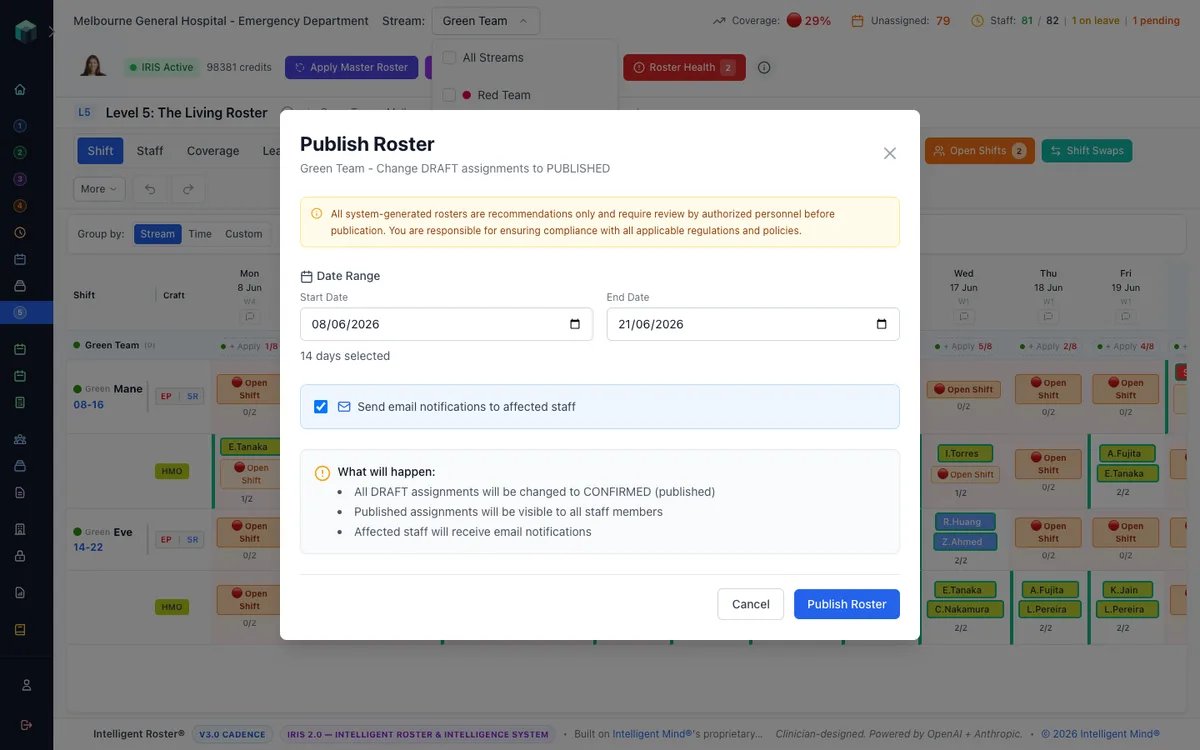
Affected staff are notified by email and in-app within seconds.
What happens at publish
- The dates lock with a 🔒 icon on the day header.
- Staff see the new shifts in My Shifts and any synced calendar.
- Compliance overrides become part of the audit trail for the published period.
Editing after publish — two options
Option 1: Edit and Re-Notify (recommended for small in-period changes)
- Make the change in the cell as normal.
- The system prompts you to re-notify only the affected person.
- Use this for sick-call backfills, swaps, single-shift moves.
Option 2: Unpublish (use sparingly — re-notifies everyone)
- Click Unpublish at the top, pick the date range.
- The dates unlock; you can edit freely.
- When you re-publish, every affected clinician gets another email — staff will perceive this as an "email storm".
When to unpublish vs Edit and Re-Notify
| Scenario | Use |
|---|---|
| One staff member's shift moved | Edit and Re-Notify |
| Sick call backfill | Edit and Re-Notify |
| Pattern change across many staff | Unpublish → edit → re-publish |
| Apply Master Roster on top of published | Unpublish first (the apply will warn) |
Tips & common mistakes
- Unpublishing is loud. Every unpublish is an email storm. Use it only when many cells need to change.
- An unpublished shift is invisible to staff. They'll keep checking My Shifts and seeing nothing. Don't leave a period unpublished by mistake.
- Publishing after a deadline? Add a Day Comment explaining (e.g. "Late publish — apologies, awaiting Vacancy approval").