
Staff Focus Drawer — 4-Week Timeline in Master Roster
Staff Focus Drawer
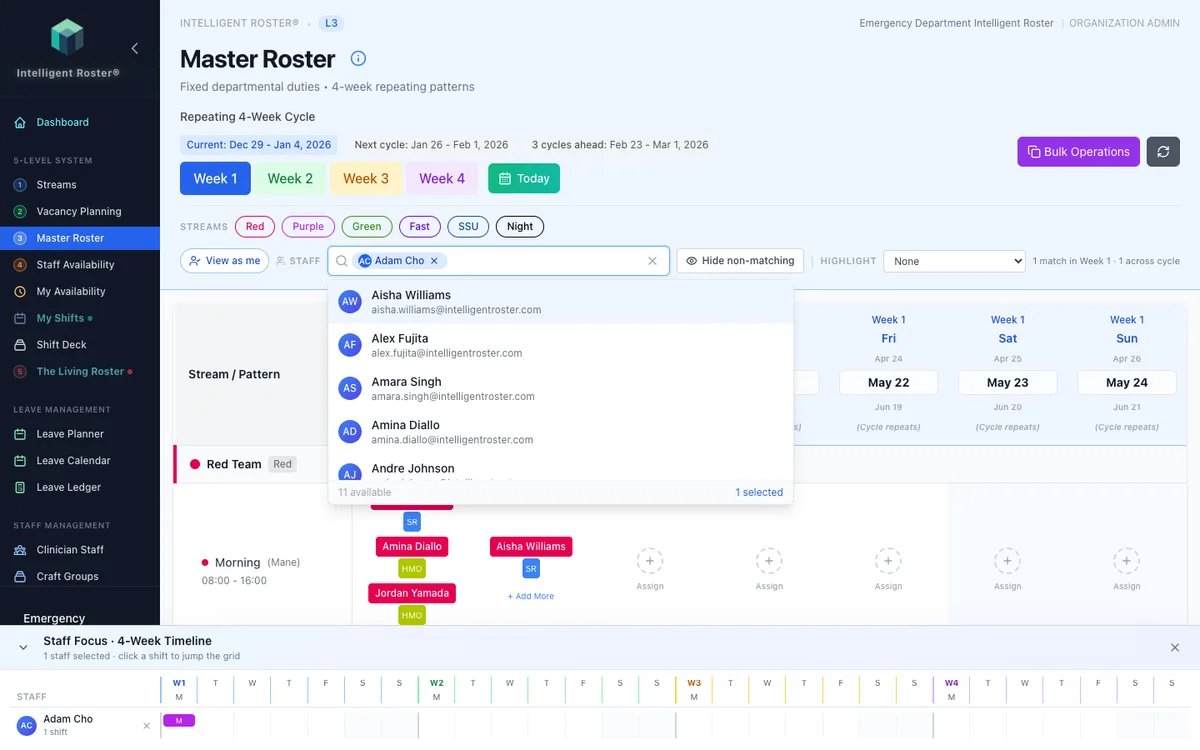
The Staff Focus Drawer gives you a compact 4-week timeline for any staff member (or multiple) without leaving the Master Roster grid.
How to open it
- Sidebar → Master Roster
- In the filter bar, use the "Search rostered staff to highlight…" field
- Select one or more staff members — the drawer appears automatically at the bottom of the screen
What it shows
- Each selected staff member as a row with name and initials
- 4 weeks × 7 days (Mon–Sun) with colour-coded shift chips (stream colour + pattern code)
- "Not rostered" for days with no assignment
- Shift count per week per staff member
Jumping to a shift
Click any shift chip in the drawer — the Master Roster grid jumps to that week and flashes the cell for ~2 seconds so you can see it in context.
Removing staff from the drawer
Click X next to a staff member to remove them. Removing all staff closes the drawer.
Use case: Compare two staff members' rotations side-by-side, verify gaps before approving leave, or check a new rotation looks balanced — all without navigating away from the grid.