
Level 1: Streams & Patterns — Admin Setup Guide
Streams are the foundation of Intelligent Roster—they represent your organization's departments and their shift patterns. This guide explains what streams are, why they matter, and how to set them up.
What Are Streams?
A stream is a combination of:
- Department: A group of staff (e.g., Emergency Department, ICU, Ward 3A)
- Shift Pattern: The times when staff work in that department (e.g., AM 7am–3pm, PM 3pm–11pm, Night 11pm–7am)
Think of streams as "who works where and when." Every clinician belongs to one or more streams, and rosters are built by stream.
Why Streams Matter
Streams define the structure of your organization:
- Fairness: Each stream has its own fairness rules (e.g., ICU night shifts need special considerations)
- Visibility: Staff see only shifts relevant to their stream
- Rostering: Roster builders create rosters one stream at a time
Setting Up Streams
Step 1: Go to Streams
- Log in as Organization Admin
- Click Streams in the sidebar (
/streams)
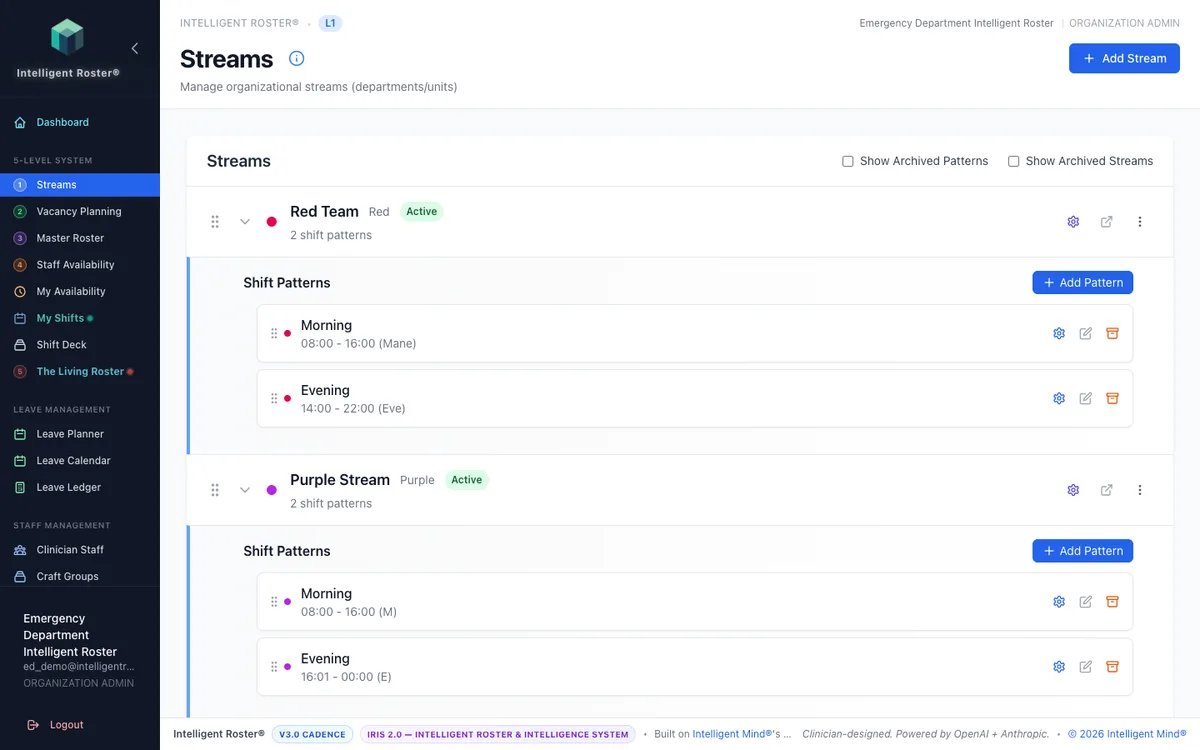
Step 2: Create a New Stream
- Click Add Stream
- Enter the stream name (e.g., "Emergency Dept - Day Shift")
- Select the shift pattern (start time, end time, duration)
- Click Save
Step 3: Define Shift Patterns
Each stream has repeating shift times. Examples:
| Stream | Pattern | Times |
|---|---|---|
| ED - Day | AM | 7:00 AM – 3:00 PM |
| ED - Evening | PM | 3:00 PM – 11:00 PM |
| ED - Night | Night | 11:00 PM – 7:00 AM |
Step 4: Assign Staff to Streams
Once streams are created:
- Go to Staff Management
- Select a clinician
- Click Assign to Stream
- Choose which streams they're eligible for
Example: A senior nurse might work in "ED - Day," "ED - Evening," and "ED - Night."
Key Rules
- Every organization must have at least one stream
- Each stream must have a unique shift pattern combination
- Staff can belong to multiple streams (e.g., a float pool clinician)
- Streams are mandatory before you can create a roster
Common Stream Setups
Small Organization (1–20 staff)
- 1 department
- 2–3 shift patterns (Day, Evening, Night)
- Total streams: 2–3
Example:
- "Ward A - Day"
- "Ward A - Evening"
- "Ward A - Night"
Medium Organization (20–100 staff)
- 3–5 departments
- 2–3 shift patterns each
- Total streams: 6–15
Example:
- "ED - Day", "ED - Evening", "ED - Night"
- "ICU - Day", "ICU - Evening", "ICU - Night"
- "Ward 3A - Day", "Ward 3A - Evening"
Large Organization (100+ staff)
- 5+ departments
- Custom shift patterns
- Total streams: 15+
Tips
- Name streams clearly: Use "Department - Shift" format (e.g., "ICU - Night") so staff understand at a glance
- Align with your current roster: Recreate your existing shift structure in streams
- Test with one stream first: Create one stream, assign a few staff, and test the roster builder before scaling
- Consistency matters: If multiple departments have the same shift times, they can share a pattern—just use different stream names
Next Steps
Once streams are set up:
- ✅ Add clinician staff and assign them to streams
- ✅ Set up craft groups (job roles like RN, EN, Doctor)
- ✅ Define scopes of practice (credentials like Trauma, ALS)
- ✅ Move to Level 2: Vacancy Planning
See the Getting Started guide for the complete setup checklist.