
Level 1: Your Department & Shift Schedule
Your stream is your department and the shift you work. This guide explains what it means and how it affects your roster.
What's a Stream?
A stream is:
- Your department (e.g., Emergency Department, ICU, Ward 3A)
- Your shift time (e.g., Day 7am–3pm, Evening 3pm–11pm, Night 11pm–7am)
Combined, your stream is something like "Emergency Dept - Evening Shift."
Why It Matters
Your stream determines:
- When you work: The times you're rostered (e.g., always 3–11pm if you're in the Evening stream)
- Who you work with: Your roster is built with other staff in your stream
- Your roster patterns: Fairness rules apply per stream (nights off, consecutive days, etc.)
How Streams Appear in Your Roster
When you log in to Intelligent Roster:
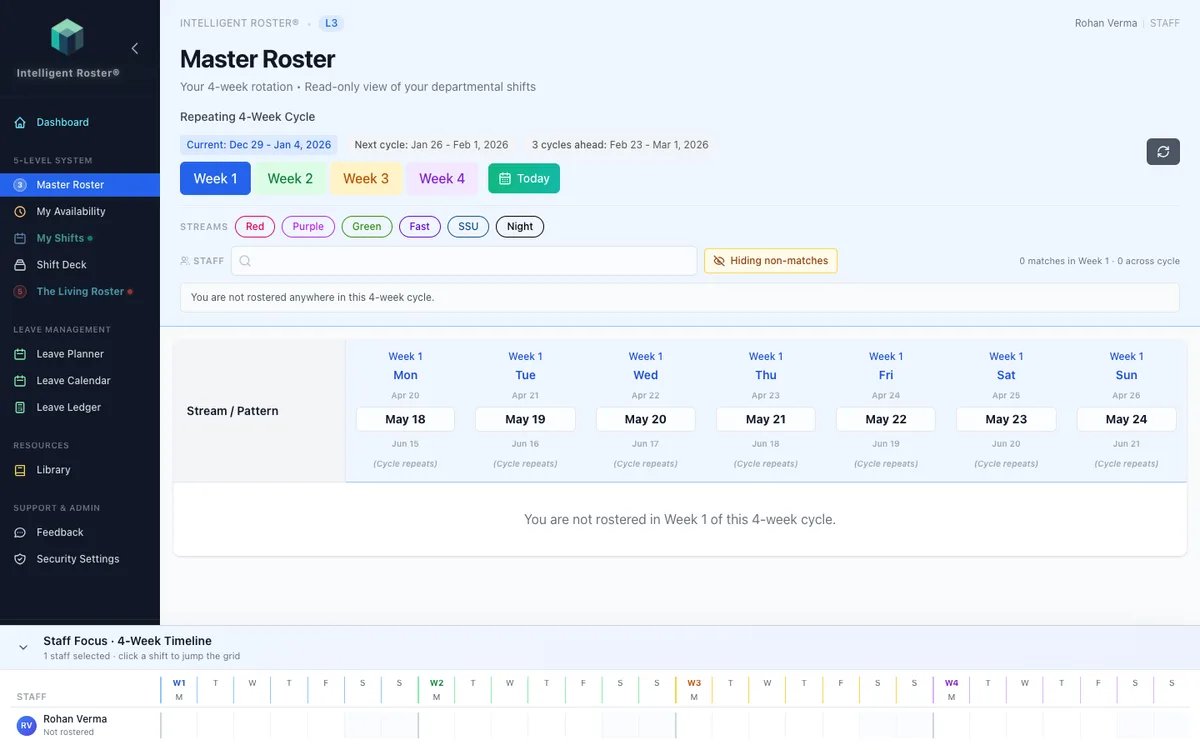
- You see your stream name at the top
- Your calendar shows only shifts relevant to your stream
- Your availability is set per stream (you might work Day and Evening, but not Night)
Common Questions
Q: Can I work in multiple streams?
A: Yes! Some staff work in multiple streams (e.g., both "ED - Day" and "ED - Evening"). You set availability for each.
Q: Does my stream affect my leave request?
A: No. Leave is global—you request leave across all your streams at once.
Q: Why can't I see shifts from other streams?
A: By design! Your roster is personalized to your stream(s). This keeps the calendar clean and focused on what's relevant to you.
Next Steps
- ✅ Check your assigned streams in your Profile
- ✅ Set your Availability for each stream you're assigned to
- ✅ Review the Master Roster (Level 3) to see your repeating shift pattern
- ✅ Read Level 5: Your Published Roster to understand how shifts are built
Get Help
- Where do I see my streams?: Go to Profile → Employee Details
- How do I set availability for my stream?: See Availability guide
- I'm rostered outside my stream: Contact your admin or submit a support ticket