
Level 2: Vacancy Planning — Admin & Roster Builder Guide
Level 2: Vacancy Planning is where you define how many staff you need and what qualifications they need. This guide explains the concepts and workflow.
What Is Vacancy Planning?
After you've defined your streams (Level 1), you now say: "In my ED Day stream, I need 5 senior nurses and 3 junior nurses on each day."
Each needed position is a vacancy—a slot in the roster that needs to be filled by someone with specific qualifications.
Key Concepts
Vacancy
A vacancy is one position that needs to be filled. Example: "1 RN (Registered Nurse) on Tuesday in ED - Day shift."
Each vacancy specifies:
- Stream: Which department/shift (e.g., "ED - Day")
- Craft Group: The job role needed (e.g., "RN")
- Scope of Practice: Optional credentials (e.g., "Trauma", "ALS")
- Count: How many people with these qualifications are needed
Craft Group
A craft group is a job role or profession. Examples:
- RN (Registered Nurse)
- EN (Enrolled Nurse)
- Doctor
- Physiotherapist
- Allied Health
Each organization defines its own craft groups based on the staff they employ.
Scope of Practice
A scope of practice is a clinical credential or specialization beyond the base job role. Examples:
- Trauma
- Advanced Life Support (ALS)
- Pediatrics
- Emergency Care Coordinator
Scopes are optional but help match staff with special skills to high-need areas.
Setting Up Level 2
Step 1: Ensure Streams Are Created (Level 1)
Before planning vacancies, you must have streams defined. If you haven't done this, start with Level 1: Streams & Patterns.
Step 2: Define Craft Groups
- Go to Sidebar → Craft Groups (
/craft-groups) - Click Add Craft Group
- Enter the name (e.g., "RN", "EN", "Doctor")
- Click Save
Common craft groups:
- RN (Registered Nurse)
- EN (Enrolled Nurse)
- NUM (Nurse Unit Manager)
- Consultant
- Allied Health
Step 3: Define Scopes of Practice (Optional)
- Go to Sidebar → Scope of Practice (
/scopes) - Click Add Scope
- Enter the name (e.g., "Trauma", "ALS")
- Click Save
Step 4: Create Vacancies
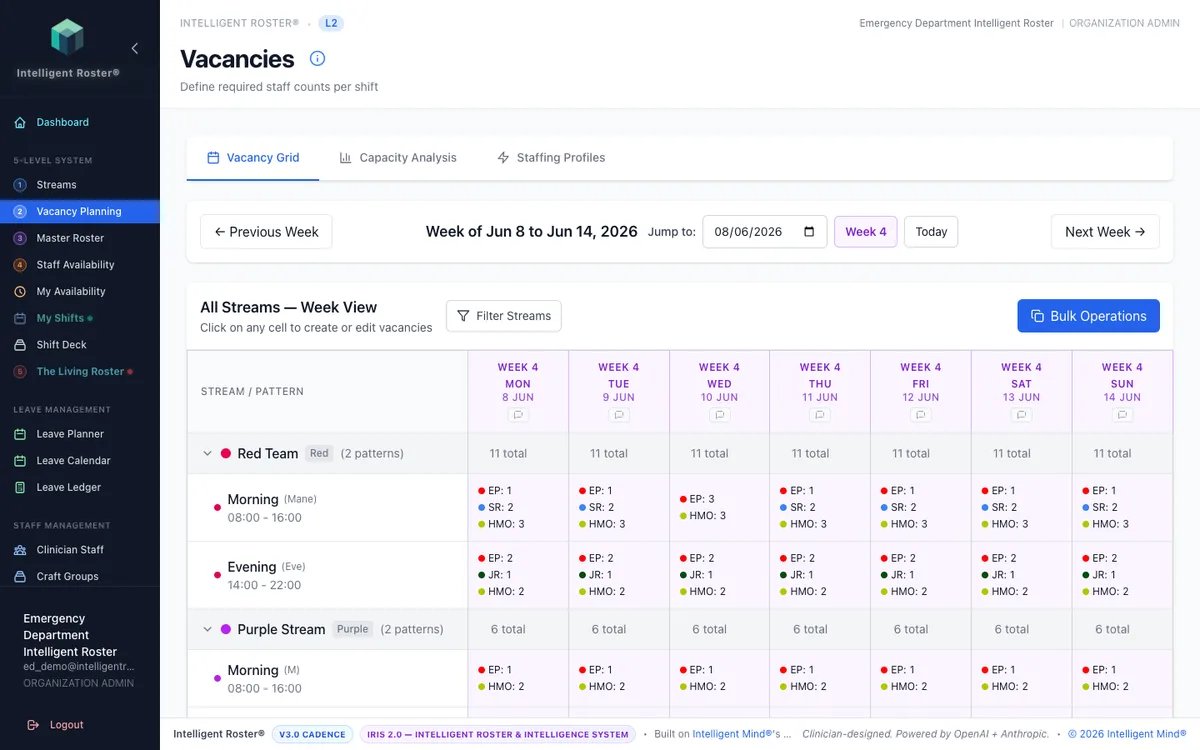
- Go to Sidebar → Vacancy Planning (
/staffing-vacancies) - Click a cell to set requirements for that shift pattern and day, or click a shift-pattern row header to replace all future weeks for that pattern
- For each requirement, set craft group (single or OR group), optional scopes, and count
- Repeat across days and patterns as needed
Stream-wide craft/scope changes: Hover the stream name row and click the purple layers icon to add or remove craft groups and scopes across the whole stream from this week forward — without changing staff counts. See How to Add or Remove Craft Groups and Scopes Across a Whole Stream.
Example: ED Stream Setup
Scenario: Your Emergency Department needs 5 RNs and 3 ENs per day shift.
| Stream | Craft Group | Scope | Count |
|---|---|---|---|
| ED - Day | RN | Trauma | 3 |
| ED - Day | RN | - | 2 |
| ED - Day | EN | - | 3 |
This means:
- 3 RNs with Trauma certification
- 2 RNs without special scope
- 3 ENs
Assigning Staff to Craft Groups and Scopes
Once vacancies are defined, you assign staff to craft groups:
- Go to Staff Management
- Select a clinician
- Click Edit
- Assign Craft Group (required)
- Assign Scopes of Practice (optional)
- Click Save
Example: Sarah is an RN with Trauma certification → Craft Group: RN, Scopes: [Trauma]
Key Rules
- Every vacancy must specify a craft group
- Scopes of practice are optional but recommended for specialized roles
- Vacancies are per stream—ED Day and ED Evening are different
- Staff must be assigned a craft group before they can be rostered
Common Mistakes to Avoid
❌ Creating too many craft groups: Stick to real job roles (RN, EN, Doctor, not "Senior RN", "Junior RN")
❌ Forgetting to assign staff to craft groups: Staff with no craft group can't be rostered
❌ Over-specifying scopes: Use scopes only for real credentials (Trauma, ALS, not "Good at Communication")
❌ Creating vacancies without understanding streams: Each vacancy must map to a real stream
Tips
- Start simple: Create 2–3 craft groups, 0–2 scopes, then refine based on experience
- Align with your payroll system: If your payroll has job codes, use those as craft groups
- Document your scopes: Make a list (e.g., "Trauma = courses X, Y, Z completed") so staff understand what they need
Next Steps
- ✅ Define craft groups for your organization
- ✅ Assign staff to craft groups (in Staff Management)
- ✅ Create vacancies for each stream
- ✅ Move to Level 3: Master Roster to build repeating patterns
See the Getting Started guide for the complete setup checklist.