
Level 3: Master Roster — Admin Guide
Level 3: Master Roster is where you create repeating shift templates. Once defined, these templates make rostering faster and more consistent.
What Is a Master Roster?
A master roster is a repeating 4-week pattern of shifts that serves as the baseline for all future rosters. Instead of creating shifts from scratch every time, you:
- Build the master roster once
- Reuse it (with tweaks) for each pay cycle
Example: In your ED - Day stream, you need 5 RNs every day. You create a master roster that shows exactly who works which days, then reuse it week after week.
Why Master Rosters Matter
- Consistency: Staff see predictable patterns (e.g., "I always work Monday–Wednesday")
- Fairness: Ensures fair distribution of weekends, nights, and unpopular shifts
- Speed: Build the master once; generate new rosters in minutes
- Equity: Easier to audit and adjust for fairness before publishing
Master Roster Concepts
4-Week Cycle
Most organizations use 4-week repeating patterns. Some use 2-week or custom cycles, but 4 weeks is standard.
Template vs. Live Roster
- Master Roster (Level 3): The template—reusable, not published to staff
- Living Roster (Level 5): Published to staff; based on the master but with real-time changes
Rotation
A rotation is one repeating pattern within the master. Example:
| Week 1 | Week 2 | Week 3 | Week 4 |
|---|---|---|---|
| Mon–Wed (AM) | Thu–Sat (PM) | Sun, Mon (Night) | Tue–Thu (AM) |
Staff might rotate through this pattern repeatedly.
Creating a Master Roster
Step 1: Ensure Streams & Vacancies Are Set (Levels 1–2)
Before creating shifts, you need:
- ✅ Streams defined
- ✅ Vacancies created
- ✅ Staff assigned to craft groups
If not done, return to Levels 1–2.
Step 2: Go to Level 3: Master Roster
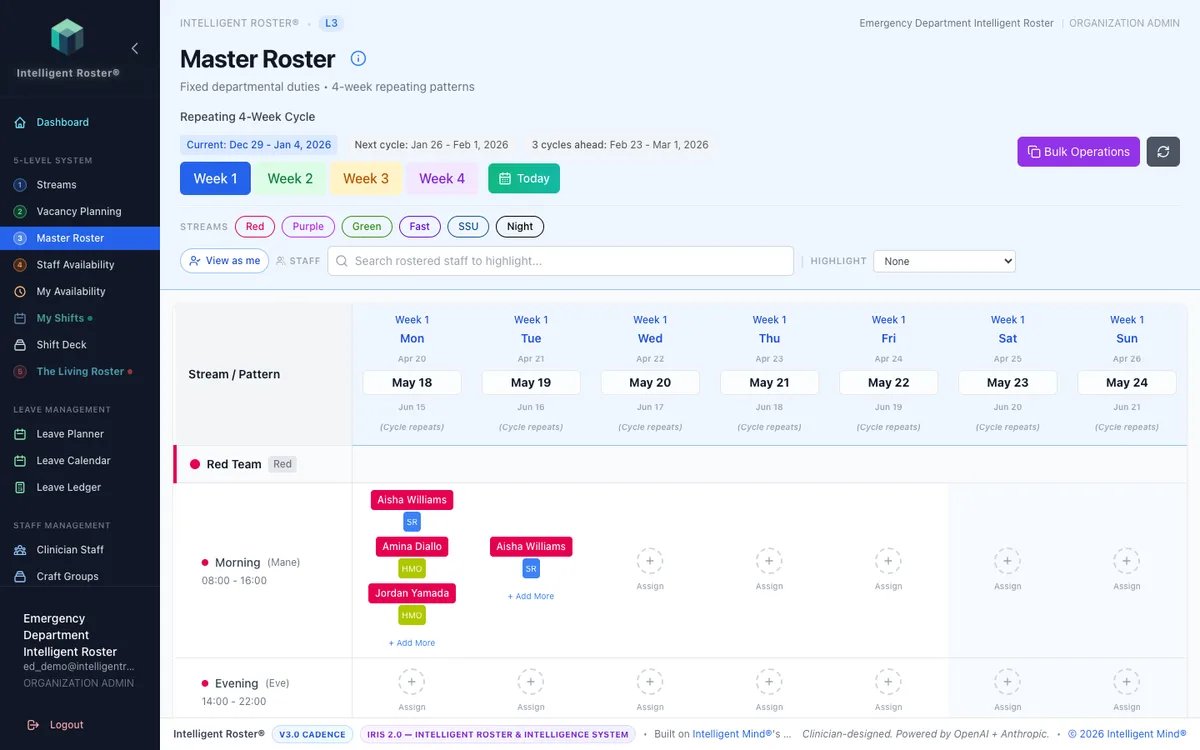
- Click Level 3: Master Roster
- Select a stream (e.g., "ED - Day")
- You'll see a blank 4-week calendar
Step 3: Add Shifts
- Click on a date/time slot
- Select staff to assign to that shift
- Click Save
Bulk option: Use Excel-style bulk assign to add many shifts at once:
- Select multiple cells
- Assign staff in bulk
- Click Save
Step 4: Review Fairness
Before finalizing:
- Click Fairness Check
- Review distribution:
- Weekends fair?
- Night shifts balanced?
- No one overworked?
- Make adjustments if needed
Step 5: Save as Template
- Click Save Master Roster
- Name it (e.g., "ED - Day - 4wk - Jan 2026")
- Click Save
This template is now ready to reuse.
Example: Simple 4-Week Master for Small Stream
Stream: "Ward A - Day" (5 RNs needed daily)
Master Roster Pattern:
- Week 1: Nurses A, B, C, D, E work Mon–Fri
- Week 2: Nurses C, D, E, F, G work Mon–Fri
- Week 3: Nurses E, F, G, H, I work Mon–Fri
- Week 4: Nurses G, H, I, J, A work Mon–Fri
Then cycle repeats. This ensures each nurse gets weekends off and shares weekday/weekend burden fairly.
Key Rules
- Master rosters are per stream (each stream has its own)
- Each master must be at least 2 weeks (recommend 4 weeks)
- Vacancies from Level 2 determine how many shifts exist per day
- Master rosters are not published—they're templates only
Common Mistakes
❌ Trying to assign staff without vacancies: Define vacancies first (Level 2)
❌ Ignoring fairness: Check fairness before saving; unfair rosters are hard to fix later
❌ Creating the master manually every time: Reuse templates—that's the point
❌ Forgetting to account for leave: Leave is handled at Level 4; master is just the baseline
Tips
- Start with one stream: Master one stream completely before moving to others
- Test the template: Before publishing (Level 5), generate one "live roster" and review it
- Document rotations: Write down your 4-week pattern so new admins understand it
- Audit regularly: Every 3–6 months, check that the master still feels fair
Next Steps
- ✅ Create master rosters for each stream
- ✅ Review fairness for each stream
- ✅ Save templates for reuse
- ✅ Move to Level 4: Staff Availability so staff can set their constraints
- ✅ Move to Level 5: Living Roster to publish and manage real rosters
See the Getting Started guide for the complete setup checklist.