
Level 5: Your Published Roster
Level 5: Your Published Roster is your final schedule. This guide explains how to read it, understand fairness, and make changes if needed.
What's a Published Roster?
Once your admin sets availability and creates the plan, they publish the roster. This is the official schedule you'll work.
The published roster shows:
- Your shifts: Date, time, department, who you're working with
- Time off: Approved leave and rostered days off
- Your fairness score: How fairly shifts are distributed (0–100%)
It's called the "living" roster because it can change throughout the pay period if someone swaps, calls out, or new shifts open up.
How to Read Your Roster
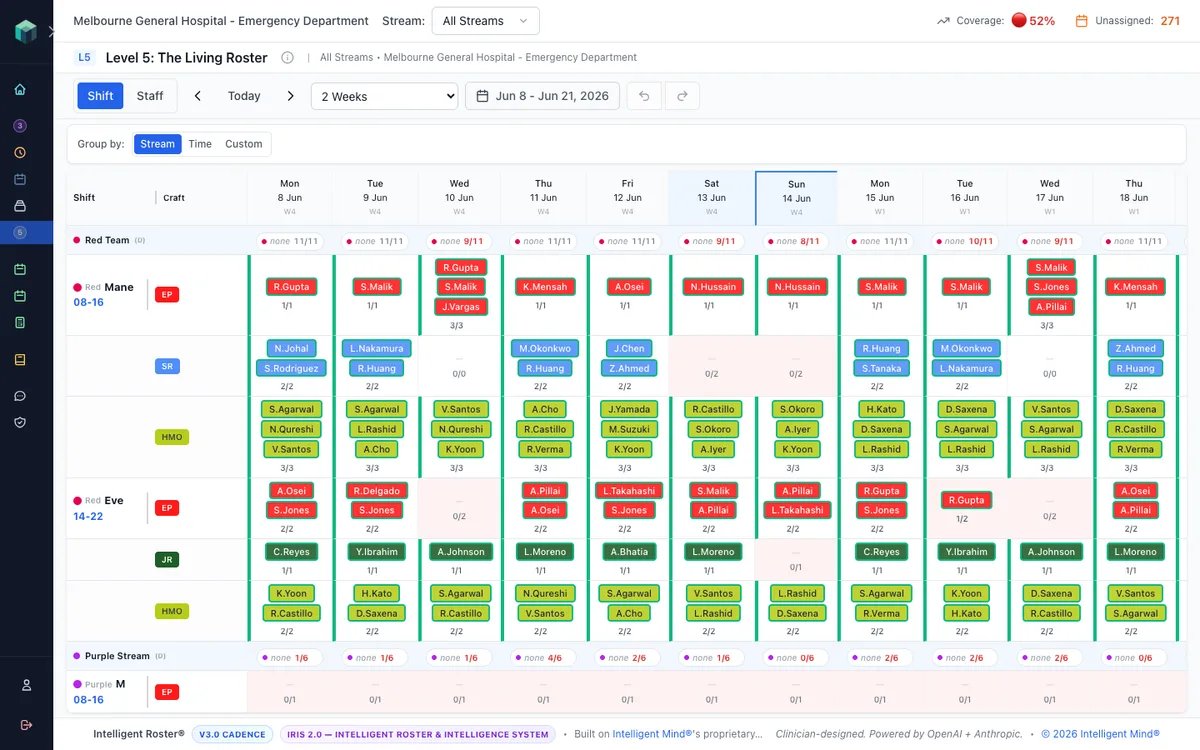
Shift Information
Each shift shows:
- Date: e.g., "Monday, July 1"
- Time: e.g., "7:00 AM – 3:00 PM"
- Location/Stream: e.g., "ED - Day"
- Team: Who's rostered with you
Click a shift for more details:
- Special notes from your admin
- Who to contact if you need help
- Swap/request options
Time Off
Off days show as:
- Leave: Approved vacation/personal time
- Rostered Off: Scheduled day off (part of fairness)
- Public Holiday: Bank holiday
Understanding Fairness
Fairness means your shifts are distributed equally across the team. You have a fairness score (0–100%):
- 80–100%: Very fair—you're being treated equally
- 60–79%: Somewhat fair—minor imbalances
- <60%: Unfair—you're overworked or getting fewer good shifts
What Makes a Roster Fair?
✅ Everyone gets: Similar weekend distribution
✅ Everyone gets: Mix of morning, evening, and night shifts
✅ Everyone gets: Similar total hours
✅ Everyone gets: Breaks between intensive sequences (e.g., no 10 consecutive nights)
If Your Fairness Is Low
If your fairness score is <75%:
- Check the details: Click Fairness Audit to see exactly why
- Talk to your admin: Ask if it's temporary or if changes are planned
- Request a swap: If specific shifts are the problem, ask someone to swap with you
- Submit feedback: Use the feedback form if you think it's unfair
Making Changes to Your Roster
Request a Swap with a Coworker
You see someone has a shift you want:
- Click their shift in the published roster
- Click Request Swap
- Confirm your shift is what you're offering
- Send request
They approve or decline. Once approved, admin finalizes.
Bid on an Open Shift
Your admin opens shifts (e.g., because someone called out):
- Click Open Shifts
- Find shifts you're interested in
- Click Bid
- Add a note (optional: "I'd love this shift")
- Submit bid
Admin reviews all bids and assigns the shift to the best candidate.
Request Leave After Publication
You need to take time off after the roster is published:
- Click Request Leave
- Enter dates
- Click Submit
Your admin reviews. If approved, someone else covers your shift. If declined, you'll need to find a swap.
Request a Change
General changes (not a specific shift):
- Click Request Change
- Describe (e.g., "I can't work 3 nights in a row, but the roster has me Tue–Thu nights")
- Submit
Your admin will review and make adjustments if possible.
Common Questions
Q: Why is my fairness low?
A: Probably because of your availability. If you're only available certain days, you'll get more of those days (fair within your constraints, but maybe skewed overall).
Q: Can I trade shifts with someone?
A: Yes! Use Request Swap. Both of you must approve.
Q: What if I call in sick?
A: Contact your manager immediately. Then log in and mark the shift as "Unable to Work." Admin will find coverage.
Q: Can I refuse a shift?
A: No, once published and you haven't marked it off, you're committed. Plan ahead—use swaps or request changes before publication.
Q: When is the next roster published?
A: Usually weekly or fortnightly. Your admin tells you the schedule.
Get Help
- My roster looks wrong: Contact your admin with specific dates/times
- I don't understand my fairness: Ask your admin for a breakdown
- I need to swap a shift: Use Request Swap or ask coworkers directly
- I can't work a published shift: Contact your manager urgently
Next Steps
- ✅ Review your published roster for the pay period
- ✅ Check your fairness score
- ✅ Request swaps if needed
- ✅ Bid on open shifts if interested
- ✅ Report problems to your admin early
Remember: The more you engage with your roster (swaps, bids, requests), the better it works for you!