
How to Approve an Open Shift Claim — Live Eligibility Card
Approving an Open Shift Claim
When a staff member requests an open shift, the claim appears in your approval queue. You can review the Live Eligibility card — fortnight hours, rest, overlap, and scope — before approving.
If IRIS Auto-Approve is enabled
When your org has the IRIS Auto-Approve add-on (Organizations → Add-ons), strict-clean claims may never reach your queue — they auto-assign on submit. Items with conflicts, leave, window violations, or swap-with-open-shift claims (when that toggle is off) still appear here for manual review.
- Setup and backlog queue: IRIS Auto-Approve setup
- Staff experience: What staff should expect
- Swap auto-approval: Swap Auto-Approval Rules
Where to find pending claims
You have three entry points; all use the same approval logic:
| Entry point | Best for |
|---|---|
| Shift Deck → Approvals | Reviewing all pending swaps and open-shift claims in one place |
| Living Roster → Open Shifts pane → Requests tab | Approving while you are already rostering — see claims in grid context |
| In-app notification | Jumping straight to a new claim when it lands |
From the Living Roster (Open Shifts pane)
This is often the fastest path when you are already on the grid:
- Go to The Living Roster (Sidebar → The Living Roster)
- Click Open Shifts in the toolbar (orange button — badge shows pending request count)
- In the slide-out Open Shifts pane, open the Requests tab
- Each pending claim shows the claimer, shift details, and Fortnight hours impact (Live Eligibility)
- Click Approve or Decline on each request, or use bulk actions at the top
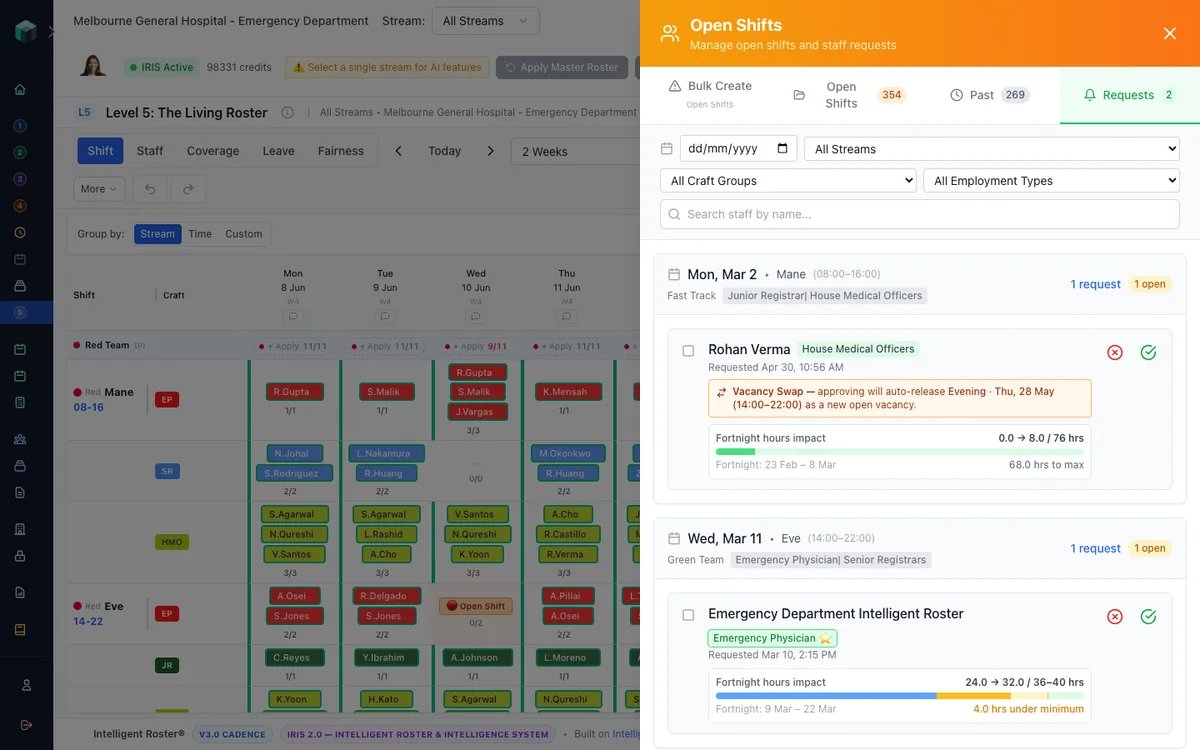
You can also click the hand icon on an open-shift cell in the grid for a quick popover — approve or decline from there, or choose View all requests in panel for the full Live Eligibility view.
From Shift Deck
- Go to Shift Deck (Sidebar → Shift Deck)
- Open the Approvals tab
- Find the claim under Shift Requests (grouped by vacancy)
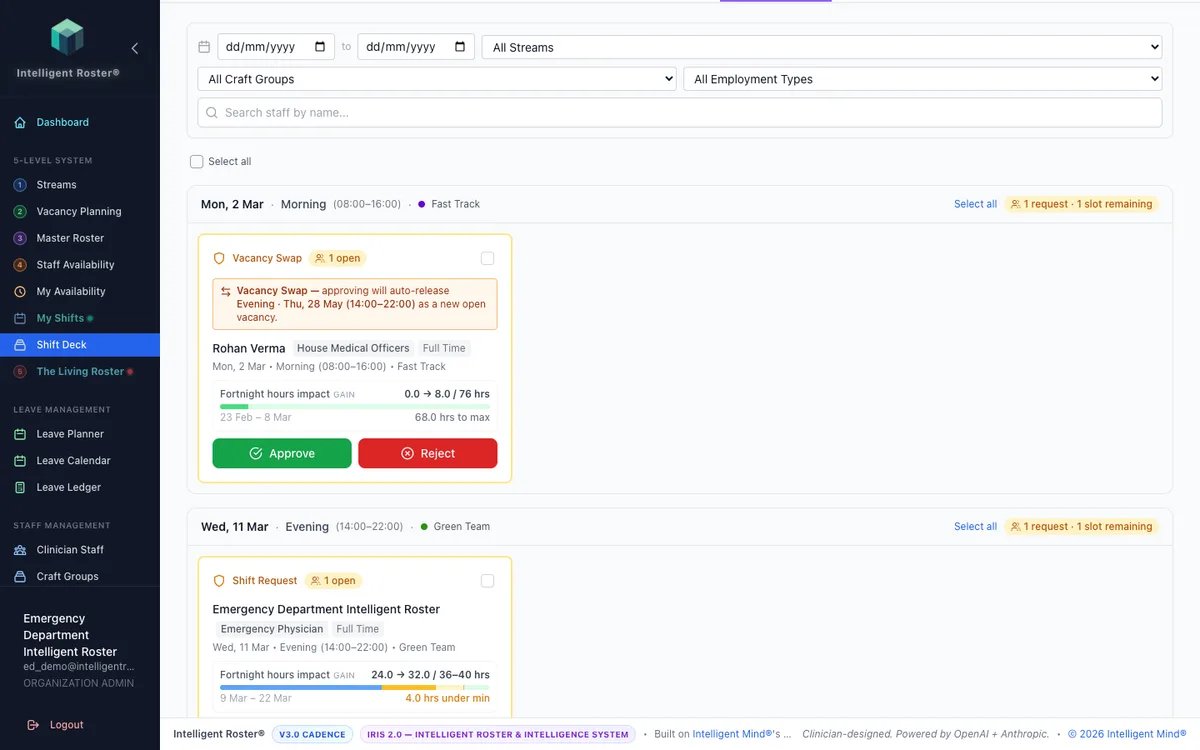
What the Live Eligibility card shows
Each claim displays a decision-support panel, for example:
RN Patel claiming: ED Morning, Wed 14 May
Current fortnight: 32 h | Projected: 40 h | Min 30 / Max 80 ✅
No overlap | No rest violation | Holds Resus ✅
Conflicts: none
| Check | What you're seeing |
|---|---|
| Hours band | Current period hours vs min/max |
| Overlap | Any other shift on that day |
| Rest | Tier-based rest from previous shift |
| Scope | All required scopes held |
| Availability | Their declared availability for that window |
| Conflicts | Cross-stream conflicts (if any) |
Approve or reject
- Read the Live Eligibility card and any out-of-qualification warnings
- Approve — staff is assigned to the shift; the grid updates
- Reject with reason — the requester is notified (keep reasons factual)
For out-of-qualification requests (craft group or scope mismatch), you must acknowledge the mismatch before approving.
Bulk actions
When multiple staff requested the same vacancy, use bulk actions — available on both Shift Deck → Approvals and Open Shifts pane → Requests:
- Approve & Decline Rest — approves your selection and auto-declines all other pending requests for that vacancy (fastest for single-slot shifts)
- Approve Selected — for multi-slot vacancies, approve some and leave others pending
- Decline Selected — bulk reject
Other staff whose requests are auto-declined receive an automatic notification explaining why.
Tips
- Read the Eligibility card before approving — it is the difference between a clean assignment and a fatigue-rule violation you will override later.
- Use the Living Roster Open Shifts pane when you are already filling gaps on the grid — you do not need to switch to Shift Deck.
- "Approve & Decline Rest" is the fastest way to fill a single-slot vacancy — pick one person and everyone else is notified automatically.
Related guides
- How to Approve Shift Swaps — including from Living Roster → Shift Swaps pane
- Bulk Approving and Declining Open Shift Requests
- How to Request an Open Shift
- How to Broadcast an Open Shift