
How to Approve Shift Swaps and Open Shift Requests (Roster Builder)
How to Approve Shift Swaps (Roster Builder)
When staff accept a direct swap or offers arrive on an open swap, the request waits for roster builder approval before the grid updates — unless IRIS Auto-Approve is enabled and the swap passes strict-clean checks (then it may complete immediately). Open shift requests follow a separate flow — see How to Approve an Open Shift Claim.
If IRIS Auto-Approve is enabled
- Organizations → Add-ons → IRIS Auto-Approve → Auto-approve swaps
- Accepted swaps that pass strict-clean validation may skip this queue
- Clear backlogs from Living Roster → IRIS Auto-Approve — full guide
- Staff-facing explanation: What staff should expect
Where to find pending swaps
| Entry point | Best for |
|---|---|
| Living Roster → Shift Swaps pane | Approving while you are already rostering on the grid |
| Shift Deck → Approvals | Reviewing all pending swaps and open-shift claims together |
| In-app notification | Jumping to a new swap when it lands |
From the Living Roster (Shift Swaps pane)
- Go to The Living Roster (Sidebar → The Living Roster)
- Click Shift Swaps in the toolbar (teal button — badge shows pending count)
- In the slide-out Shift Swaps pane, open the Pending Approval tab
- Each pending swap shows who is exchanging shifts and the Fortnight hours impact bar
- Click Approve or Reject on each request
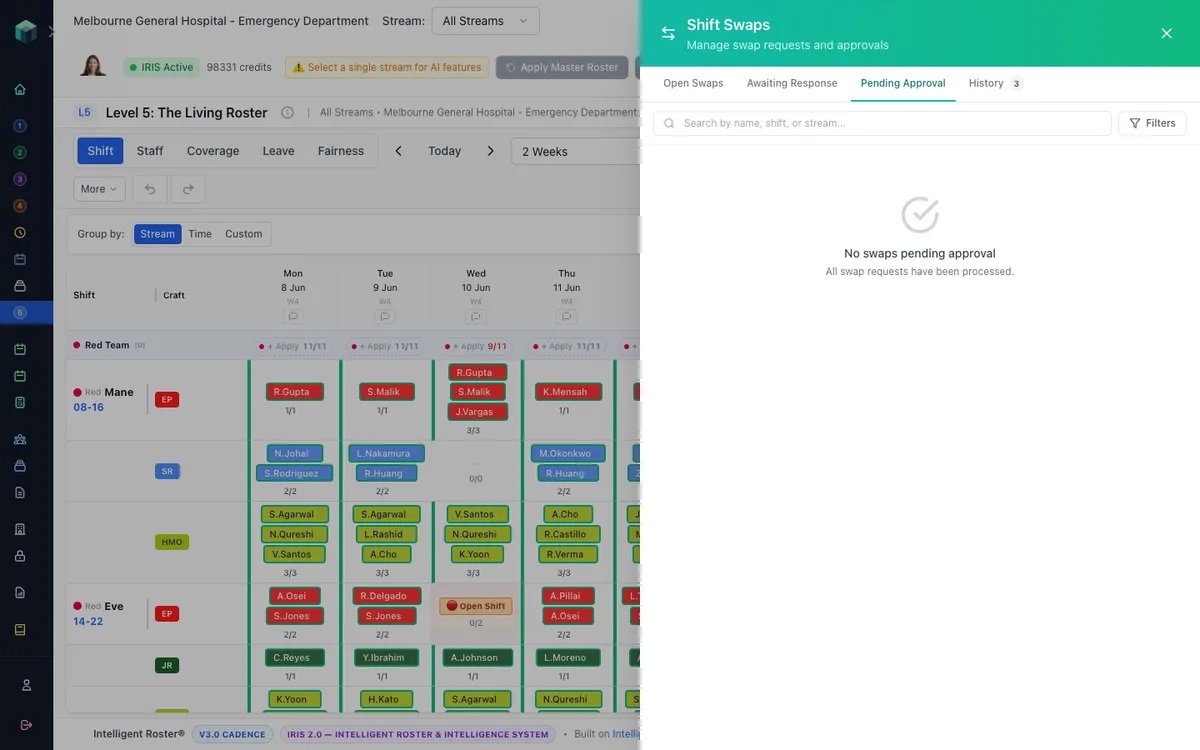
For direct swaps, review who is exchanging which shifts (or one-way transfer). For open swaps with multiple offers, pick the correct offer before approving.
You can also click the swap indicator on a shift cell in the grid (teal badge when a swap is pending) for a quick popover — then View in Shift Swaps panel for the full fortnight impact view.
From Shift Deck
- Go to Shift Deck (Sidebar → Shift Deck)
- Click the Approvals tab (badge shows pending count)
- Review items under Swap Requests
- Click Approve or Reject
For open shift requests (not swaps), use the same Approvals tab or the Living Roster Open Shifts pane — see open shift claim approval.
Reading the Fortnight hours impact bar
- For direct swaps and open-swap offers, each card shows projected fortnight hours for the affected staff.
- For direct swaps that straddle two fortnights, you may see two bars — one labelled
gain(shift added) and one labelledloss(shift removed). Cross-fortnight swaps that look fine in one half can still under-roster the other. - The same numbers appear in the staff swap modal, so staff and admins see identical projections.
- Over-max or under-min are warnings, not blocks — your decision whether to approve.
Out-of-qualification and compliance
- For requests flagged as out-of-qualification, tick the acknowledgement checkbox before approving.
- Read compliance warnings on the card — approving with warnings may require an override reason.
Bulk actions (Shift Deck)
For multiple open-shift claims on the same vacancy, bulk approve/decline is available on Shift Deck → Approvals and on Living Roster → Open Shifts pane → Requests. See Bulk Approving and Declining Open Shift Requests.
Open swaps with multiple offers must be approved individually — pick the correct offer in either the Shift Swaps pane or Shift Deck Approvals.