
How to View Your Shifts
- Go to My Shifts (Sidebar → My Shifts)
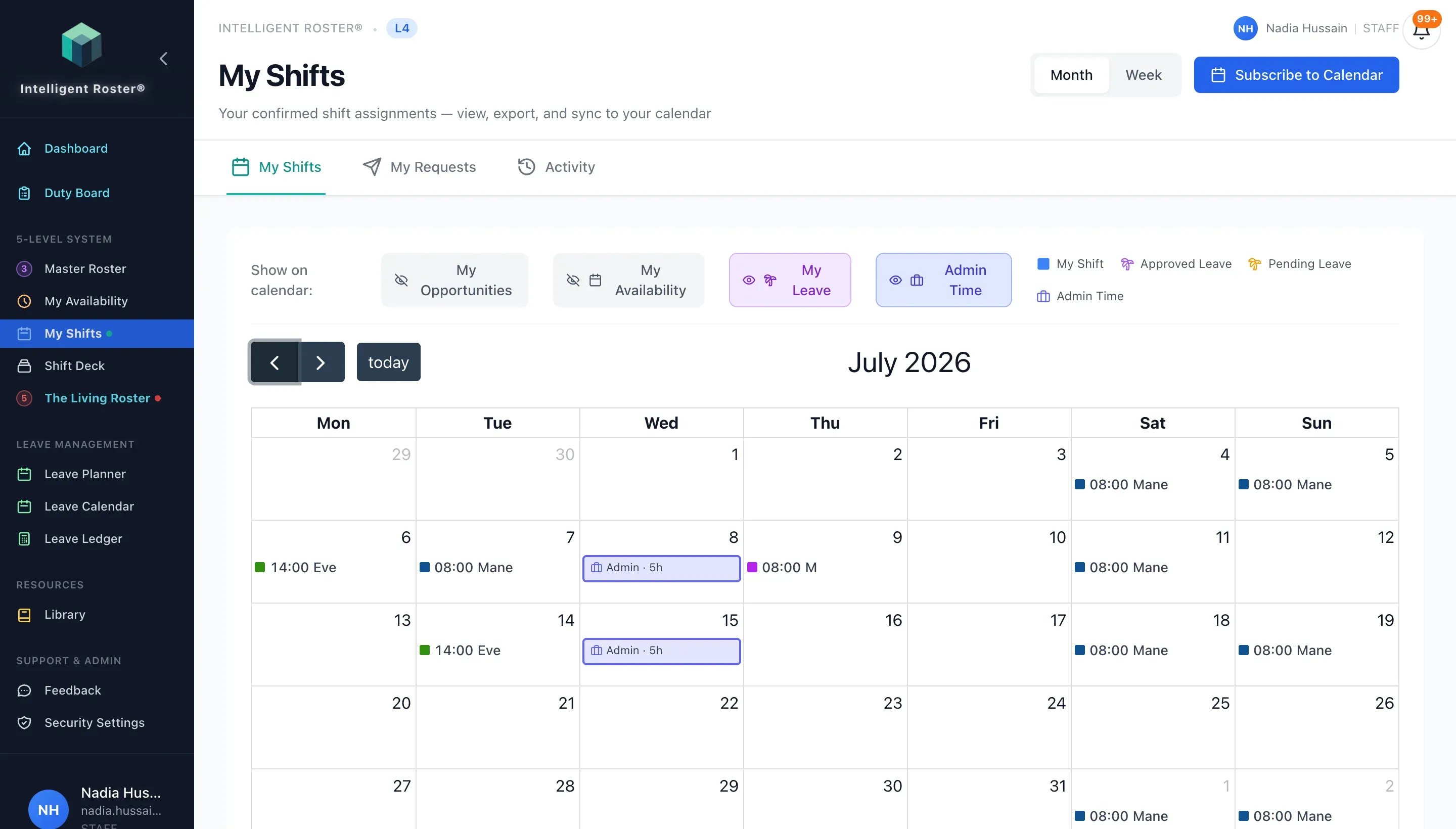
- You'll see a calendar view of all your assigned shifts
- Each shift shows:
- Date and day of week
- Shift pattern (e.g., AM, PM, Night)
- Start and end time
- Stream/department
- Use the Month/Week toggle to change your view
- Click any shift for more details
- Right-click a shift for actions:
- Request Swap — start a direct swap, open swap, or pick up an open shift
- Cancel Open Swap Post — if you posted this shift for an open swap (teal dashed border), withdraw the post from here
Overlay toggles ("Show on calendar" bar, top of the page):
- Open Shifts – shows vacant shifts available to pick up (translucent orange blocks). Click one to request it.
- Open Swaps – shows shifts colleagues have posted for an open swap (teal). Click one to offer to take it.
- My Requests – shows your own pending open-shift requests and open-swap offers as yellow markers, so they're always visible even if the Open Shifts/Open Swaps overlays would otherwise filter them out. Click a marker to view details and withdraw inline, right from the calendar.
- My Availability – shows your availability settings
- My Leave – shows your approved and pending leave
- Admin Time – shows non-shift admin/education/meeting allocations (on by default)
Live Calendar Sync (scroll to the bottom of My Shifts):
- One-click buttons: Open in Google Calendar, Open in iCal, and Open in Outlook
- Subscribes your confirmed shifts to your phone or desktop calendar — see How to Sync Your Roster to Your Calendar for step-by-step setup and troubleshooting
Other ways to check:
- Dashboard – shows upcoming shifts at a glance
- Shift Deck – see open shifts, swaps, and your requests
- The Living Roster → Staff View → My Opportunities – toggle on the toolbar to see eligible open shifts, swap offers, and pending requests on the grid (My Opportunities on Staff View)
- Calendar Sync – see shifts on your phone (see "How to Sync Your Roster to Your Calendar")
- Ask IRIS – type "What are my shifts this week?" in the IRIS chat