
How to Use Bulk Reconcile to Publish and Repair Open Shifts
What Bulk Reconcile Does
Bulk Reconcile (formerly "Bulk Create") is the first tab of the Vacancy Management panel and does two things in one action:
- Publishes open shifts for any Level 2 requirement that still has unfilled seats.
- Repairs every existing open shift in the selected date range so it matches the roster's current Level 2 requirements (craft groups, scope of practice, and staff counts) — without ever silently dropping a staff member's pending request.
Use it any time after changing Level 2 requirements (craft group, scope of practice, or staff count), or whenever you want to publish newly-unfilled shifts for staff to pick up.
After publishing the Living Roster: the Publish modal no longer creates open shifts inline. If you need to advertise unfilled seats after publish, use Bulk Reconcile here instead.
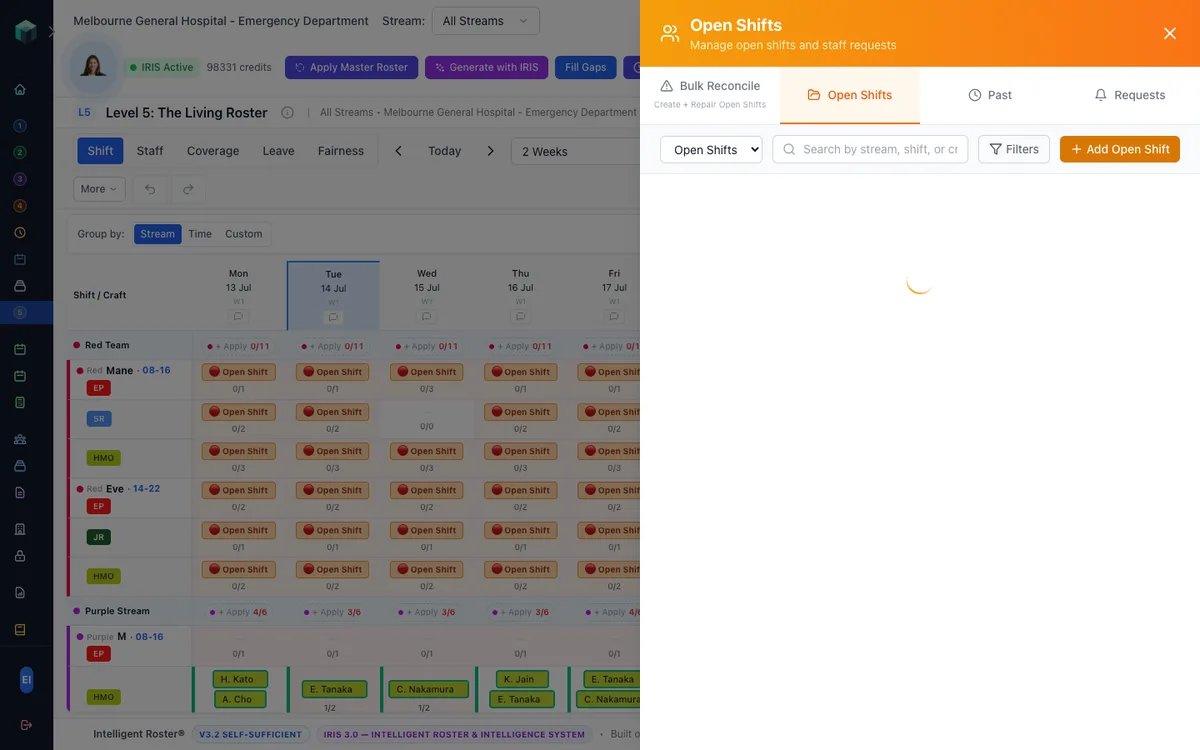
Step by step
- Click "Open Shifts" in the top bar of the Roster Command Center to open the Vacancy Management panel
- Select the "Bulk Reconcile" tab (first tab, labelled "Create + Repair Open Shifts")
- Set a date range and optionally filter by Stream or Time of day (Morning 06:00–12:00, Afternoon 12:00–18:00, Evening 18:00–22:00, Night 22:00–06:00)
- Click Search to see every unfilled requirement in that range
- Select the shifts you want to publish (or Select All) and click Open Selected Shifts
What happens under the hood
Every run reconciles the cells it touches before deciding what to publish:
| Situation | What Bulk Reconcile does |
|---|---|
| A cell has no open shift yet and still needs staff | Creates a new open shift for the unfilled seats |
| An open shift already exists but doesn't cover all the unfilled seats | Expands it (slotsTotal increased) |
| An open shift now advertises more slots than the cell actually needs (e.g. someone was assigned directly, or the required count was reduced) | Shrinks it down to match — any pending requests are kept, they just compete for fewer slots |
| The craft group, scope of practice, or required count changed on Level 2 | The open shift's craft/scope options are updated to match, so only staff who are actually eligible can see and request it |
| A cell is now fully covered by real assignments and its open shift has no pending requests | The open shift is closed automatically |
| A cell is now fully covered but its open shift still has pending requests | The open shift is held for your review instead of being closed or having requests auto-declined — see below |
| A shift was previously closed (e.g. from an old wipe-and-reapply cycle) but the cell needs staff again | The old closed record is reopened and reused instead of creating a duplicate |
Held-for-review open shifts — nothing is ever silently dropped
If a cell becomes fully staffed while one or more staff still have a pending request on its open shift, Bulk Reconcile does not auto-decline them and does not close the ad. Instead:
- The open shift stays open internally, but is resized so it no longer accepts new requests and no longer appears to eligible staff as available (it's fully covered, after all)
- You get a notification — "Open Shift Requests Need Review" — telling you how many requests are waiting and linking straight to the roster
- You decide from the Requests tab whether to approve one of the pending requests (there may still be room if someone becomes unavailable) or decline them with a reason
Tip: After a large Level 2 change (e.g. reducing staff counts for a stream), run Bulk Reconcile once, then check your notification bell for any "Open Shift Requests Need Review" alerts before assuming everything is settled.
Tip: Bulk Reconcile is safe to run repeatedly — it only ever changes cells that actually need it, and re-running it after nothing has changed does nothing.
Roster Builder scope
When Roster Builder scope enforcement is enabled, Bulk Reconcile search defaults to your permitted streams only. Submitting vacancy IDs outside your scope is rejected. See Roster Builder Permissions for details.