
The Dashboard Intelligence Hub — Roster Manager View
The Dashboard Intelligence Hub
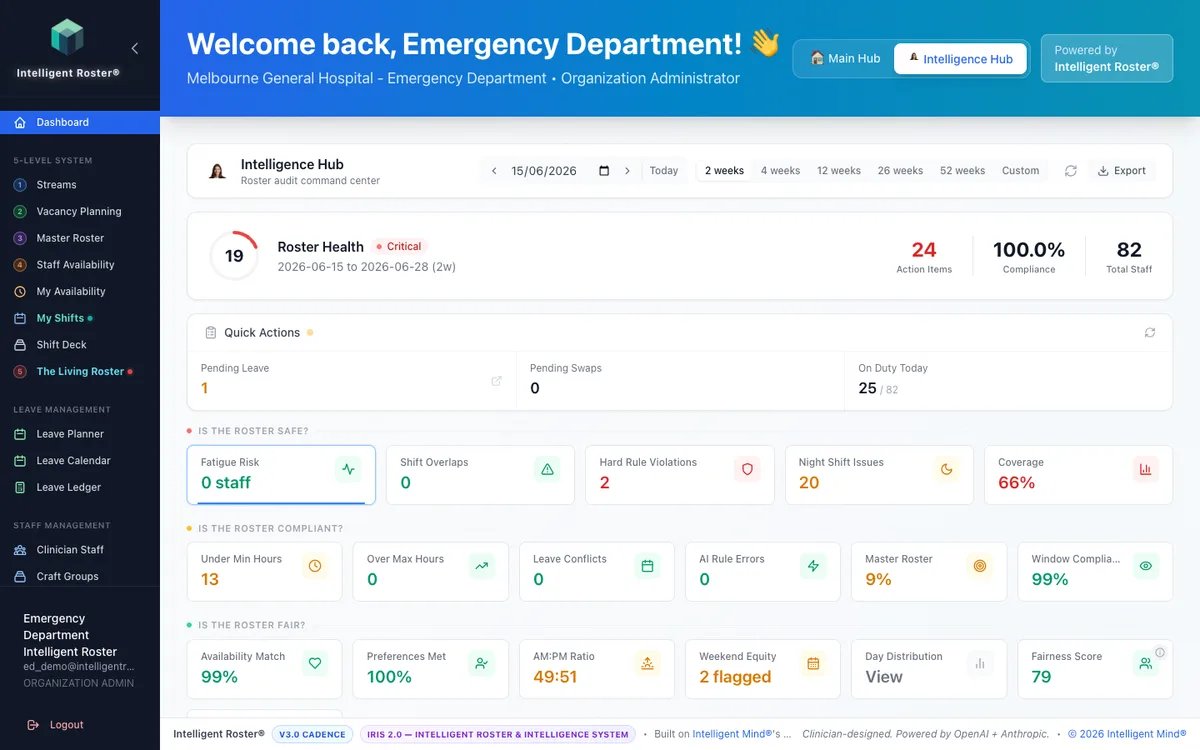
The Dashboard has two view modes you toggle at the top:
- Main Hub — IRIS chat, Learn Intelligent Roster, Quick Actions, the 5-Level navigator, your profile card, Upcoming Shifts, Shift Deck widget.
- Intelligence Hub — IRIS-driven insights, fairness summaries, recent generation activity.
On the Main Hub, the Learn Intelligent Roster panel opens the public Learn hub in a new tab. Use it when you want step-by-step guides, pro tips, and video walkthroughs without leaving your dashboard session.
What's on the Intelligence Hub
| Section | What it shows |
|---|---|
| Coverage health | Green / amber / red status across each Stream you manage |
| Pending approvals | Swaps and vacancy requests waiting for your decision |
| Recent IRIS generations | The last few times IRIS filled gaps, with success rate |
| Fairness flags | Staff currently outside fairness thresholds (e.g. someone with 3× weekend ratio of peers) |
| Cost flags | Anything tracking above budget for the period |
| Hours view | Fortnight hour balance across staff — including below-minimum and over-max counts |
| Compliance Watch | Rolling 28-day totals of scope mismatches and craft mismatches across the organisation, broken down by AI, Human, and Master (Apply) sources — click a row to open Roster Health pre-filtered |
Compliance Watch
Compliance Watch helps you spot qualification drift before accreditation or audit conversations:
- Scope mismatch — assignments where staff lack a required scope of practice on the vacancy
- Craft mismatch — assignments where craft group does not match the vacancy
Each total shows how many were created by IRIS (AI), Apply Master Roster (Master), or manual edits (Human). Click a row to jump to The Living Roster → Roster Health with that conflict type already filtered.
Use Compliance Watch after large IRIS runs or bulk Apply operations — mismatches often mean vacancy scope requirements or staff scope records need updating, not that IRIS ignored the rules on new assignments.
Hours view and tolerated over-max
In the Hours section, use the Over-Max filter to review staff near or above their maximum clinical hours.
- Over count — genuine max-hours violations that affect the health score
- Tolerated count — staff with a one-shift over-max exception to reach minimum hours (informational only)
- A blue info panel lists tolerated staff with details — these do not drag the health score down
Staff below minimum are surfaced separately so you can see who still needs hours before the fortnight closes.
When to use it
- Every morning for 30 seconds — see what needs attention today.
- After publishing to confirm your roster looks healthy.
- After IRIS generation — check below-minimum and tolerated over-max before publishing.
- When something feels off — most red flags surface here first.
Tips
- The badges on Quick Actions are live. A red
3on Shift Deck means three items need a decision today. - Profile Card should match your HR record. If hours/craft groups are wrong, fix them in Clinician Staff, not in the Profile page.
Toggle: Click the Intelligence Hub button at the top of the Dashboard. Toggle back to Main Hub for quick actions.
Related guides
- How to Use the Roster Health Dashboard — per-roster Fortnight Hours tab with the same tolerated/below-minimum categories
- How to Check Roster Fairness