
How to Use the Roster Health Dashboard
Roster Health Dashboard
Roster Health gives roster builders a structured review of roster quality before publishing and during day-to-day changes.
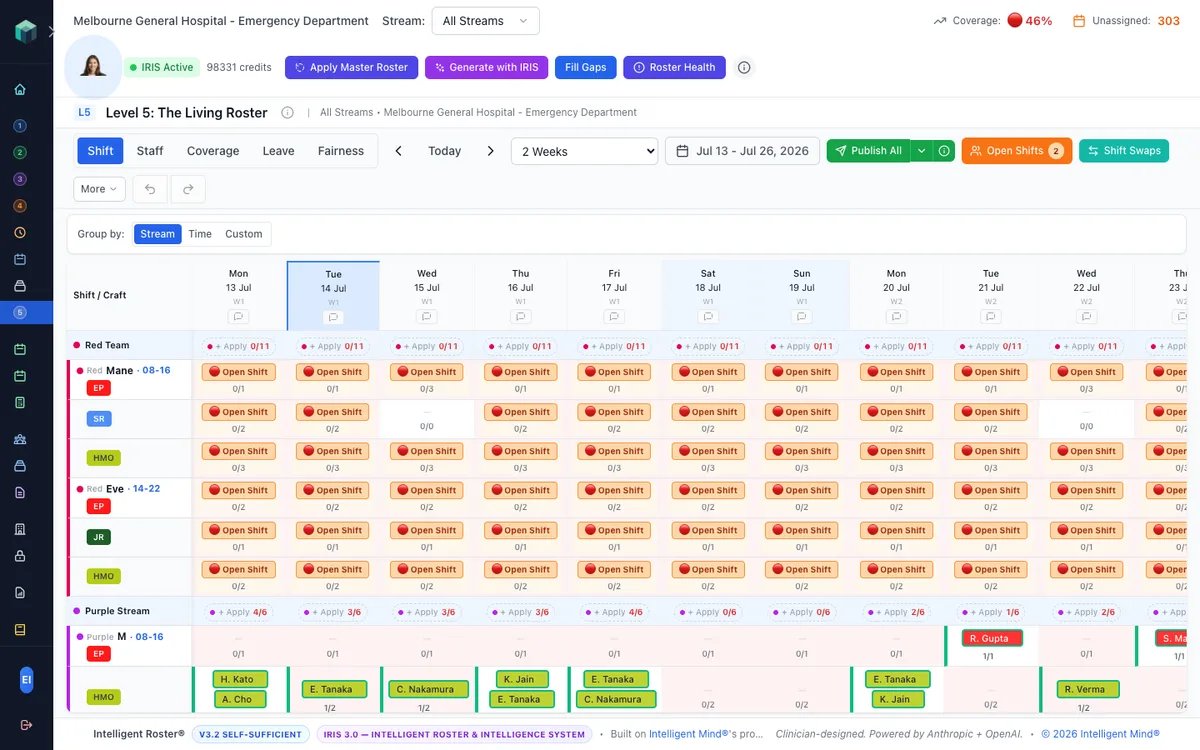
How to access
- Go to The Living Roster (Sidebar → The Living Roster)
- Click Roster Health in the Intelligence Bar or Living Roster toolbar
What it shows
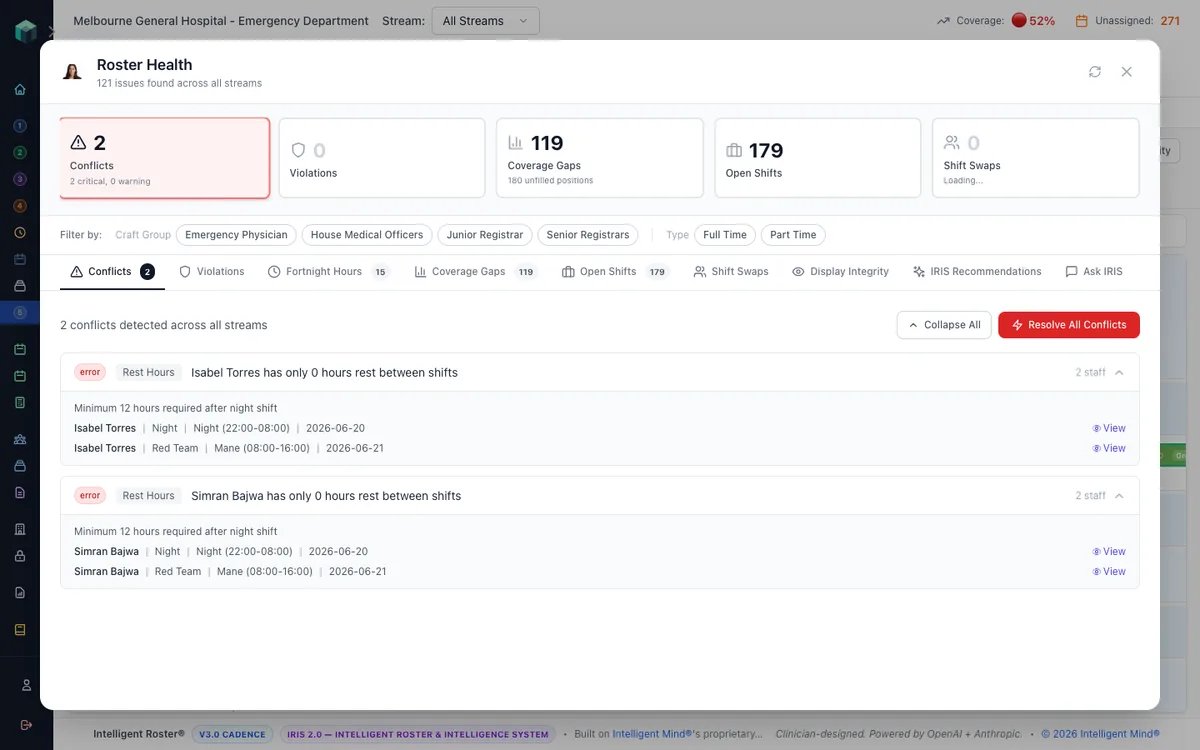
Summary cards at the top give you at-a-glance counts for:
- Conflicts — overlapping or double-booked assignments
- Configured rule issues — rest period breaches, max hours exceeded, consecutive day limits
- Coverage Gaps — shifts that need more staff
- Open Shifts — advertised vacancies waiting for applicants
- Pending Shift Swaps — swap requests awaiting approval
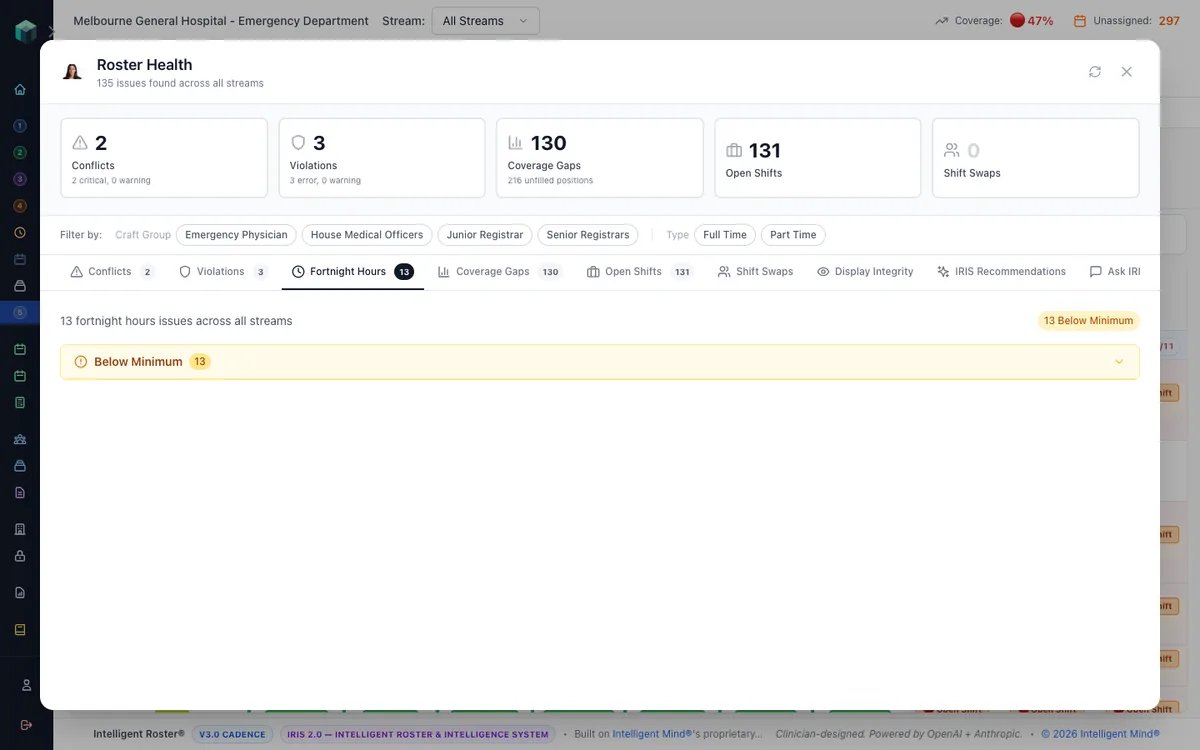
Fortnight Hours tab
The Fortnight Hours tab breaks down hour-balance issues into three categories:
| Section | Meaning |
|---|---|
| Below Minimum | Staff under their contractual minimum clinical hours for the fortnight |
| Above Maximum | Genuine max-hours violations — these are hard limits and count as issues |
| Tolerated Over Max (to reach minimum) | Blue informational section — a rare one-shift exception when shift granularity makes the max unreachable without dropping below minimum. Not counted as violations |
Sections populate when staff fall into each category. An empty roster period may show no entries — the tab structure is still the place to check after IRIS generation or manual edits.
Smart Unassign — bring over-max staff back under control
When staff appear in Above Maximum, use Smart Unassign to ask IRIS which assignments are safest to remove.
What it does:
- Reviews the staff member's future fortnight assignments across streams
- Prioritises removing IRIS and manual assignments before Master Roster assignments where possible
- Ranks options by fairness impact, coverage risk, assignment source, and how closely the removal fixes the excess hours
- Shows one or more recommended removal options before you apply anything
When several staff are above maximum, click Preview Smart Unassign for All to load IRIS's ranked removal options for every person in one pass. The user-facing batch buttons are labelled Preview Smart Unassign for All and Preview Smart Assign for All (not "Smart Unassign All" / "Smart Assign All").
This button loads suggestions only — nothing is committed automatically. Clicking it expands every affected staff row and loads suggestions inline. Progress shows as Loading X/Y… on the button. Rows with loaded suggestions show an IRIS Ready badge.
After loading, a banner appears: "Suggestions loaded for X of Y staff. Click Apply on each option you want to commit — nothing is committed until you do." Review each row in the IRIS Recommended Removals panel and click Apply on the removals you want. Removal rows show source badges IRIS, Manual, and MR (Master Roster). After unassigning, re-run Roster Health and use Fill Gaps or manual assignment if coverage needs repair.
Smart Assign — lift below-minimum staff toward target
When staff appear in Below Minimum, use Smart Assign to find safe shifts that help them reach their contractual minimum.
What it does:
- Searches eligible open vacancies for that staff member
- Ranks matches by availability tier: Preferred → Available → Grace, and Undeclared only when Include undeclared availability is ticked
- Reuses the same rule checks as Fill Gaps: craft group, scope, rest, max-hours, AI rules, and fairness distribution
- Shows how many hours each option adds and explains the fairness impact
- Open-vacancy matches appear in the IRIS Recommended Assignments panel
The Below Minimum header has the same Include undeclared availability checkbox as Generate with IRIS and Fill the Gaps — off by default. With it off, Smart Assign only suggests shifts this person preferred or marked available (partial-overlap grace matches still count). Their own pending open-shift requests still appear. Tick the box if you want IRIS to also consider dates they never declared.
When several staff are below minimum, click Preview Smart Assign for All to load IRIS suggestions for every below-minimum person — open-vacancy matches, their pending open-shift requests, and (where relevant) over-staff options appear inline. Like unassign, this loads suggestions only — you must click Apply on each open-vacancy row you want to commit. Changing the undeclared checkbox clears loaded suggestions so the next preview uses the new setting.
Clicking the batch button expands every affected row, shows Loading X/Y… on the button, and displays the same banner as unassign: "Suggestions loaded for X of Y staff. Click Apply on each option you want to commit — nothing is committed until you do."
Approve on own-request panels and Over-staff on over-staff options remain individual-only — they are never part of the batch preview. Over-staff options use an Over-staff button (not Apply). If all suggested shifts are undeclared, a red warning appears before you Apply.
Over-staffing is treated differently: if no open vacancy fits, Roster Health may show Over-staff to reach minimum options, but these are excluded from Preview Smart Assign for All and must be confirmed one at a time because they add an extra person to an already-filled shift.
Their pending open-shift requests
If the below-minimum staff member has already requested open shifts in this fortnight, Smart Assign lists them in a separate Their pending open-shift requests (this fortnight) panel. This reuses the normal open-shift approval — approving here is the same as approving from Shift Deck or the Open Shifts pane, not a new over-staffed assignment.
- Each request shows the Fortnight hours impact bar so you can see the projected hours before approving
- Approve is individual only — it is never part of Preview Smart Assign for All
- Qualification mismatch requests show an amber warning — approving records an override
- If other staff also requested the same shift, a "N others requested this shift" link expands to show who they are and their hours (including whether they are also below minimum), so you can weigh the fairness trade-off before approving
- When the same shift appears both as an open-vacancy suggestion and as their own request, the suggestion is tagged Already requested — prefer approving the request in the panel above
In Shift Deck → Approvals, requesters who are below their minimum for the fortnight now show a Below minimum badge and are ordered first within each shift's request list.
Conflicts tab — scope, craft, and who created the assignment
The Conflicts tab lists compliance issues row by row. Besides overlaps and rest-hour breaches, look for:
| Conflict type | What it means |
|---|---|
| Scope Mismatch | Staff assigned to a shift but missing a required scope of practice on the vacancy |
| Craft Mismatch | Staff's craft group does not match what the vacancy requires |
| Leave Conflict | Assignment overlaps approved leave (including manual overrides) |
Each conflict row shows a source badge — AI (IRIS Generate or Fill Gaps), Master (Apply Master Roster), or Human (manual assignment). Use this to see whether IRIS, a template, or a person introduced the issue.
Overrides still appear here. When a roster builder overrides scope or craft with a recorded reason, the assignment is intentional — but Roster Health still surfaces it so you can audit before publishing.
From the Dashboard Compliance Watch card, clicking a scope or craft mismatch total opens Roster Health pre-filtered to that conflict type.
Resolve tab — bulk-fix mismatched assignments
The Resolve tab is for craft-group and scope-of-practice mismatches that should not stay on the roster. It lets you bulk-delete the exact assignments Roster Health has already flagged.
Use it when:
- Apply Master Roster created assignments that no longer match the vacancy requirements
- A manual edit put the wrong craft group or scope into a shift
- You used Vacancy Planning → stream layers icon to add or remove crafts/scopes across a stream — assigned staff stay on the roster, but mismatches are flagged here for manual action
- Compliance Watch sends you into Roster Health with craft or scope mismatches already filtered
What happens when you resolve:
- Roster Health lists Craft Group Mismatches and Scope of Practice Mismatches separately
- You choose the mismatch type, review the affected assignments, then confirm the deletion
- Deleted assignments become open vacancies — they are not automatically refilled
- Refill the cleared shifts with Fill Gaps or manual assignment, then run Roster Health again
- For batch IRIS suggestions on multiple conflicts, continue from Resolve into Resolution Plan Builder on The Living Roster
Resolve is deliberately conservative: it removes unsafe or mismatched assignments, then asks you to restaff the slot with a valid person.
For Roster Builders with scope restrictions
If your Roster Builder permissions limit your craft groups and/or streams:
- You can only delete assignments from your permitted craft groups and streams
- The Stream dropdown only shows your permitted streams (no "All streams" option)
- The Craft Group dropdown only shows your permitted craft groups
- If you leave Craft Group empty, all your permitted craft groups are included in the delete
- Assignments outside your scope are silently skipped — the confirmation modal shows how many were skipped and how many were deleted
- The purple Scope banner at the top of the modal reminds you of this behaviour
See Roster Builder Permissions for details on your scope.
Tabs for detail
- Each category has a tabbed view where you can drill into individual issues
- Each item shows the affected staff member, date, specific issue, and severity
- Display Integrity tab — client-side scan for assignments that appear differently across the Staff View, Shift View, and staff My Shifts pages. Also detects malformed UTC timestamps that cause shifts to silently drop from staff iCal subscriptions. Admin-fixable issues show a green "Fix all N issues" button for one-click repair.
- IRIS Recommendations tab — AI-generated suggestions with confidence scores for resolving each issue
- Ask IRIS tab — ask questions about roster health directly
- Fortnight Hours tab — Smart Unassign above-maximum staff and Smart Assign below-minimum staff before publishing
- Resolve tab — bulk-delete flagged craft or scope mismatches so you can refill those shifts safely
Quick actions
- Click View in Grid on any issue to jump to the affected cell in the roster
- Use Smart Unassign for staff above maximum
- Use Smart Assign for staff below minimum
- Use Resolve for craft or scope mismatches that should be removed before publishing
- Use Fill Gaps after Resolve to restaff the newly opened vacancies
- Use the health score (0–100) as a quick indicator of overall roster quality
Tip: Run Roster Health before publishing. A good order is: preview and apply Smart Unassign for over-max staff → preview and apply Smart Assign for below-minimum staff → Resolve unsafe mismatches → Fill Gaps or manually restaff anything that opened → run Roster Health again.
Related guides
- The Dashboard Intelligence Hub — org-wide hours and fairness view including tolerated over-max
- How to Check Roster Fairness