
Level 4: Staff Availability — Admin Guide
Level 4 covers when staff can be rostered. In Intelligent Roster this is two separate workflows — teach staff not to mix them up.
Two tools — staff vs admin
| My Availability (staff) | Leave Planner (staff + you) | |
|---|---|---|
| Purpose | Preferences — available / preferred / unavailable | Formal time off |
| Staff sidebar | My Availability | Leave Planner |
| Your sidebar | Staff Availability (review grid) | Leave Planner (approve requests) |
| Approval? | No — auto-saves | Yes — you approve or decline |
| Blocks rostering? | Preferences only (Unavailable is not approved leave) | Yes — once approved |
What staff should do
My Availability (/my-availability):
- Recurring: "Can't work Sundays" → Unavailable
- Partial: "Course Thu 2–5pm" → Unavailable time block
- Preferences: Preferred days/shifts
- Saves automatically — no Submit button
Leave Planner (/leave):
- "Vacation July 1–7" → Request Leave → you approve
- Sick leave, personal leave, etc.
Common mistake: staff put holidays in My Availability. Redirect them to Leave Planner.
Your role as admin / roster builder
- Notify staff to complete My Availability and submit leave separately if needed
- Review the Staff Availability grid (
/staff-availability) — see who has set preferences, gaps, conflicts - Approve leave in Leave Planner — not in the availability grid
- Use IRIS Availability Audit (Staff Availability toolbar) to chase missing submissions
Managing availability (admin view)
- Go to Sidebar → Staff Availability (
/staff-availability)
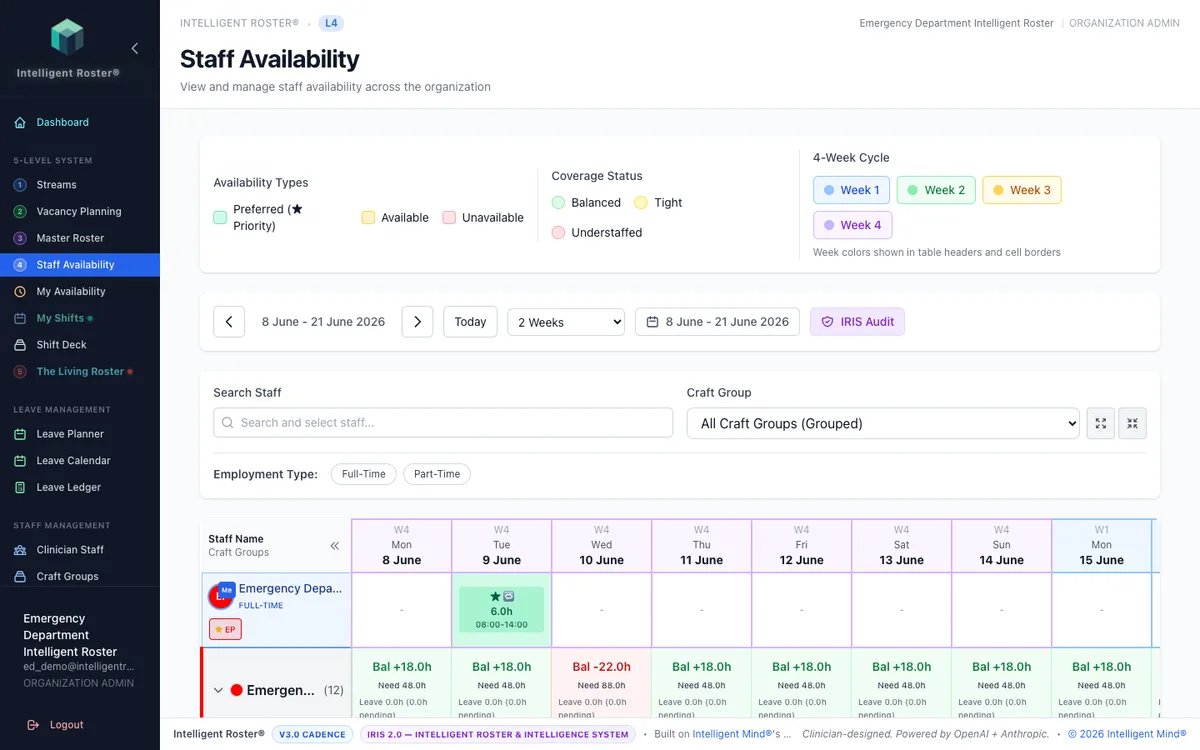
- Review the grid: staff × dates, colour-coded blocks (available / preferred / unavailable)
- Use Availability Audit / IRIS Audit to see who hasn't submitted
- Click cells to view or edit (admin override with reason if policy allows)
Leave requests do not appear here as something to "approve" — handle them in Leave Planner.
Managing leave
- Go to Sidebar → Leave Planner (
/leave) - Review pending requests (traffic-light / coverage hints may apply)
- Approve, decline, or amend with reason
- Approved leave blocks rostering on those dates in Level 5
Common scenarios
Staff sets Sunday unavailability + annual leave
- Staff marks Sundays Unavailable in My Availability
- Staff submits July 1–7 Annual Leave in Leave Planner
- You approve leave in Leave Planner
- Living Roster / IRIS respects both
Leave conflicts with coverage
- Decline or negotiate in Leave Planner with a clear reason
- Do not try to "decline availability" for a holiday — it was never a leave request if they only used My Availability
Staff hasn't set My Availability
- Send reminder before roster build
- Use Availability Audit panel
- Default assumption: broadly available unless they set otherwise (org policy may vary)
Key rules
- Unavailable ≠ approved leave — only Leave Planner approvals block rostering formally
- Staff Availability is for reviewing preferences; Leave Planner is for time off
- Set a deadline before each roster period for both My Availability and leave requests
- Document admin overrides on the Staff Availability grid
Common mistakes
❌ Telling staff to "submit availability" for holidays — use Leave Planner
❌ Approving leave in the wrong place — always Leave Planner
❌ Assuming Unavailable blocks leave-grade absence — it does not without approval
❌ No deadline — staff procrastinate; communicate both workflows clearly
Next steps
- ✅ Tell staff: Staff Checklist + Level 4 staff guide
- ✅ Set deadline for My Availability + leave requests
- ✅ Review Staff Availability grid; approve leave in Leave Planner
- ✅ Move to Level 5: Living Roster to build and publish
See the Admin Setup Checklist for the complete flow.