
Level 4: Tell Us When You Can Work
Level 4 is about telling your organisation when you can work. In the app this splits into two places — don't mix them up:
| My Availability | Leave Planner | |
|---|---|---|
| Purpose | Preferences — when you prefer or can't work | Formal time off (holiday, sick leave, etc.) |
| Approval? | No — saves automatically | Yes — roster builder approves |
| Guaranteed off? | No — Unavailable is a strong preference, not approved leave | Yes — approved leave blocks rostering |
| Where | Sidebar → My Availability | Sidebar → Leave Planner |
See Availability vs Leave for the full comparison.
What's availability?
Availability tells roster builders how you prefer to be scheduled:
- Available — you can work
- Preferred — you'd like to work (helps IRIS)
- Unavailable — you cannot or prefer not to work (including partial-day times)
It does not replace a leave request. Putting "vacation" in Unavailable does not approve time off.
Why it matters
Flexible staff (no fixed master pattern, or you want extra shifts): if you skip My Availability, you might be rostered when you'd rather not work, and IRIS has less to go on for fair scheduling.
Fixed master roster staff (pattern hours only, not seeking extras): you may ignore My Availability. Your regular shifts come from Level 3: Master Roster. Available or Preferred on pattern dates is harmless but unnecessary. What matters is Unavailable (master roster skips those dates) and approved leave in Leave Planner. See Level 3: Your Regular Shifts.
If you skip Leave Planner when you need time off:
- Your holiday may not be approved or blocked on the roster
- You might still appear as rosterable on those dates
How to set My Availability
- Go to Sidebar → My Availability (
/my-availability)
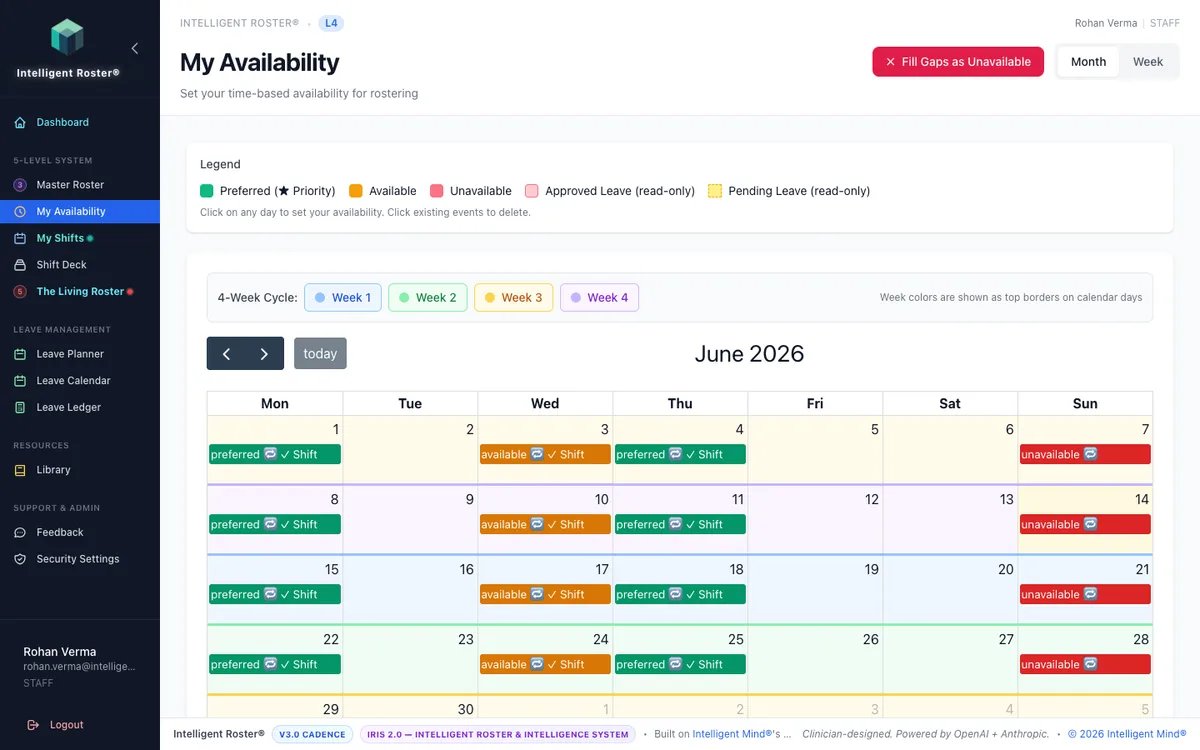
- Click dates on the calendar
- Set Available, Preferred, or Unavailable (with time ranges if needed)
- Changes save automatically — there is no Submit Availability button
Examples (My Availability only):
- ✅ "Can't work Sundays" → mark Sundays Unavailable
- ✅ "Course Tue 2–5pm" → Unavailable for that block
- ✅ "Prefer day shifts this fortnight" → Preferred on those days
- ❌ "Vacation July 1–7" → use Leave Planner (below)
How to request leave
- Go to Sidebar → Leave Planner (
/leave) - Click Request Leave
- Choose leave type, dates, and optional note
- Click Submit — wait for roster builder approval
Once approved, you're blocked from being rostered on those dates.
Examples (Leave Planner only):
- ✅ Annual leave July 1–7
- ✅ Sick leave for a medical absence
- ✅ Personal leave for an appointment (as configured by your org)
Preferences vs hard constraints
| Type | Where | Example |
|---|---|---|
| Preference | My Availability → Preferred / Unavailable | "Prefer mornings" |
| Formal absence | Leave Planner | "On holiday next week" |
Unavailable is not the same as approved leave — roster builders may still assign you in exceptional cases, whereas approved leave blocks shifts.
Key rules
- Set My Availability early for the next roster period
- Submit Leave as early as possible for approval
- Update both when plans change (before publish if you can)
- After the roster is published, use swaps or contact your manager for urgent changes
FAQ
Q: What if I'm available for everything?
A: You can leave most days as default, or mark Available broadly. No separate submit step.
Q: Can I change availability after saving?
A: Yes — edit My Availability anytime. After publish, use swaps or leave workflows for changes.
Q: What if my leave is declined?
A: Your roster builder will explain why. Discuss alternatives in Leave Planner.
Q: When does availability affect my roster?
A: Roster builders and IRIS use it when building the next Living Roster. Approved leave is applied separately.
Q: I only work my master roster pattern — do I mark Preferred everywhere?
A: No need. Your baseline comes from Level 3. Available or Preferred on pattern dates is harmless but unnecessary — it won't change your regular slots once master roster is applied. Use Unavailable when you can't work a pattern date, and Leave Planner for formal time off. See Level 3: Fixed master roster.
Q: I swap a shift occasionally — do I need availability for that?
A: No. Use Direct Swap from My Shifts for one-off changes. See How to Request a Direct Swap.
Next steps
- ✅ Set My Availability (preferences and real unavailability)
- ✅ Submit Leave in Leave Planner for any time off
- ✅ Read Level 5: Your Published Roster to see your final shifts
The more accurate you are — and the clearer you are about leave vs availability — the better your roster will be.