
Level 5: The Living Roster — Admin & Roster Builder Guide
Level 5: The Living Roster is where everything comes together. You publish the roster and manage it in real-time using AI, fairness audits, and compliance checks.
What Is the Living Roster?
The living roster is the final, published roster that:
- Combines all levels (streams, vacancies, master roster, availability)
- Applies fairness algorithms to balance shifts
- Respects constraints (availability, leave, compliance rules)
- Gets updated in real-time (swaps, last-minute changes, IRIS AI adjustments)
It's called "living" because it evolves from publication until the end of the pay period.
Key Concepts
Publishing
Publishing means releasing the roster to staff. Before publication:
- Roster is draft/editable
- Staff can't see it
- Admins can make changes
After publication:
- Staff see their shifts
- Only roster builders can edit
- All changes are logged
Fairness
Fairness means balancing shift distribution. The system checks:
- Weekend distribution (everyone gets ~equal weekends)
- Consecutive days/nights (no one overworked)
- Shift type balance (everyone gets mix of morning/evening/night)
- Hours per week (within agreed limits)
Compliance
Compliance means adhering to rules:
- Rest hours between shifts (e.g., 8 hours minimum)
- Max consecutive nights (e.g., no more than 5)
- Availability respected (no one scheduled outside constraints)
- Scope requirements met (right staff for right shifts)
Creating and Publishing a Living Roster
Step 1: Go to Level 5: Living Roster
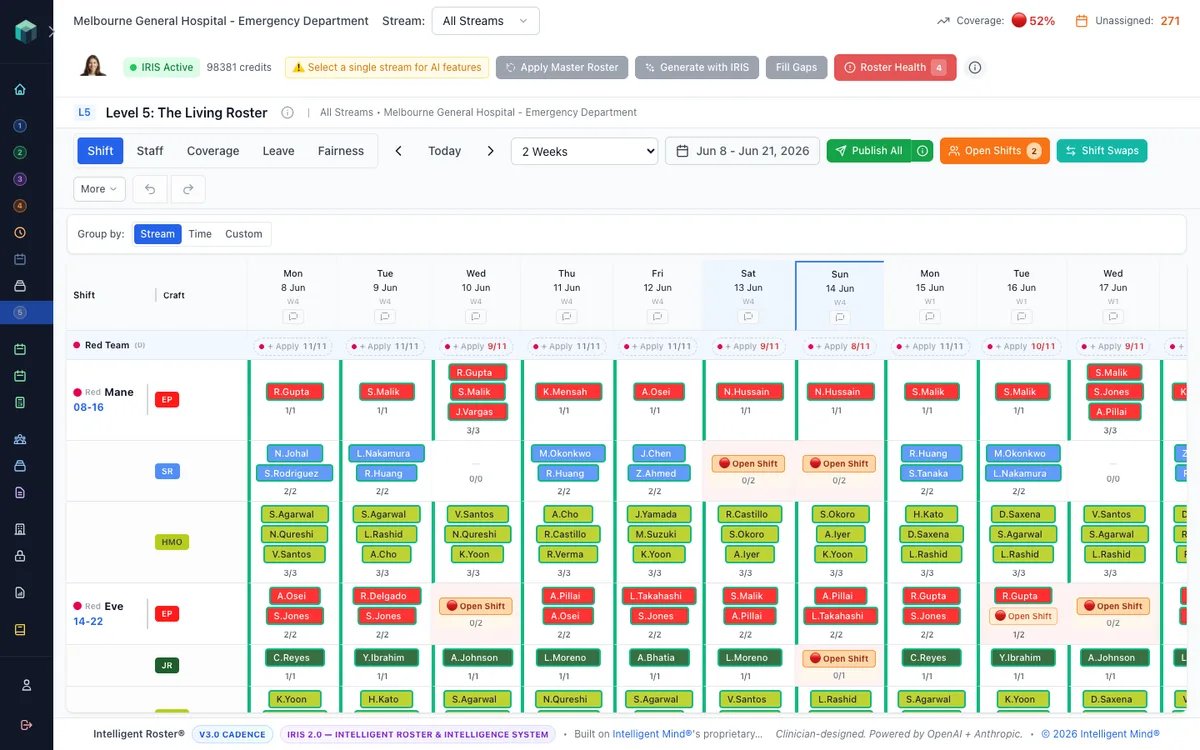
- Click Level 5: The Living Roster
- Select a stream (e.g., "ED - Day")
- Select a pay period date range
- Click Apply Master Roster to stamp your Level 3 patterns onto the grid
Step 2: Generate with IRIS
This is the core IRIS step — run it after Apply Master Roster on every new period:
- Click Generate with IRIS
- IRIS will:
- Build on your master roster baseline
- Apply availability constraints
- Balance fairness and minimum hours
- Flag conflicts in the preview
- Review the AI-Generated Roster Preview and apply selected assignments (see How to Generate a Roster with IRIS)
Fine-tune individual cells manually in the grid after applying if needed — but Generate with IRIS should do the heavy lifting for each period.
Step 3: Fill Gaps
After generation, run Fill Gaps to staff any remaining unfilled slots (leave, partial availability, conservative IRIS skips). See Fill Gaps — IRIS Tactical Mode.
- Click Fill Gaps in the Intelligence Bar
- Review ranked suggestions by priority tier
- Apply selected assignments
Step 4: Review Fairness
- Click Roster Health (or Check Fairness in the Intelligence Hub)
- Review fairness metrics and fortnight hours balance
- Look for problems:
- Any staff with extreme outliers?
- Unfair weekend distribution?
- Excessive consecutive nights?
- Staff below minimum hours?
Step 5: Review Compliance
- Click Compliance Check
- Review any warnings:
- Staff scheduled outside availability? (Red)
- Rest hour violation? (Yellow)
- Scope mismatch? (Yellow)
- Fix violations by reassigning staff
Step 6: Make Final Adjustments
Before publishing, make any last-minute changes:
- Click on a shift
- Change assigned staff (or leave empty if unfilled)
- Add a comment if needed
- Click Save
Use Excel-style multi-select for bulk edits:
- Select multiple shifts
- Assign to one person or group
- Click Apply
Step 7: Publish
Once satisfied:
- Click Publish
- Confirm the date range
- Click Publish to Staff
Staff now see their shifts in the app.
Real-Time Management (After Publishing)
Move Staff
Roster builders can relocate a staff member from one shift to another without manually deleting and recreating assignments:
- Right-click a shift on the Living Roster
- Select Move Assignment
- Choose the destination shift
- Review any compliance warnings and confirm
- The assignment is immediately relocated
Use Move when you need to reorganize shifts for coverage or fairness. See the dedicated "How to Move a Staff Member to Another Shift" guide for details.
Shift Swaps
Staff request to swap shifts. You:
- Review swap requests in Shift Swaps
- Approve (if compliant) or decline (with reason)
Open Shifts
If a shift becomes uncovered:
- Broadcast as "Open" for staff to bid on
- Review bids
- Assign to best candidate
Last-Minute Edits
If someone calls out sick:
- Click the shift
- Remove the staff member
- Mark as "Open" or assign someone else
- Notify affected staff
IRIS Co-Pilot
IRIS can suggest solutions:
- Click Ask IRIS
- Describe the problem (e.g., "I need an RN for Tuesday 3pm")
- IRIS suggests options
- Click Apply to assign
Fairness Auditing Post-Publication
Even after publishing, you can:
- Click Fairness History
- Compare:
- This week vs. last week
- This month vs. last month
- Individual staff trends
- Identify patterns (e.g., "Sarah always works weekends")
- Make adjustments or note for future rosters
Key Rules
- All constraints must be respected: No one scheduled outside availability or scope
- Fairness should be >80%: Ideally, no staff below 80% fairness score
- Compliance violations stop publication (hard blocks)
- Fairness warnings suggest adjustments (soft blocks)
- Publish with communication: Tell staff when roster is published (many systems auto-notify)
Common Mistakes
❌ Publishing without fairness check: Leads to staff complaints
❌ Ignoring compliance warnings: Creates legal/safety issues
❌ Editing published roster without logging reason: Accountability lost
❌ Not communicating roster changes: Staff miss updates
❌ Using IRIS blindly: Always review AI suggestions before approving
Tips
- Test IRIS with 1 stream first: Before auto-generating all streams, try one
- Review post-publication swaps daily: Don't let backlog build
- Archive fairness audits: Keep records for future improvement
- Communicate deadlines: "Roster published Friday; swap requests due Wednesday"
- Train roster builders early: More hands = faster conflict resolution
Next Steps
- ✅ Prepare Level 1–4 (streams, vacancies, master, availability)
- ✅ Generate first roster (manually or with IRIS)
- ✅ Audit fairness and compliance
- ✅ Publish to staff
- ✅ Manage real-time changes (swaps, opens, edits)
- ✅ Repeat for next pay period (often faster after first time)
See the Getting Started guide for the complete setup checklist and timeline.