
Fill Gaps — IRIS Tactical Mode
What Fill Gaps does
Fill Gaps is the third step in the recommended roster workflow — after Apply Master Roster and Generate with IRIS. It is designed for tactical gap-filling: IRIS has already built your balanced roster; you now staff remaining empty slots quickly without reshuffling existing assignments.
Where Generate with IRIS builds (or rebuilds) a roster holistically with fairness as a primary goal, Fill Gaps scans only unfilled vacancies and ranks eligible staff per slot. IRIS calls this Tactical Mode — more aggressive about coverage, still respecting craft groups and hard safety rules.
When to use it
| Situation | Best tool |
|---|---|
| Starting a roster period from scratch | Generate with IRIS |
| Master roster applied but leave / gaps remain | Fill Gaps |
| A few vacant shifts after publishing edits | Fill Gaps |
| You want full-period fairness optimisation | Generate with IRIS |
| You want to staff specific holes without reshuffling the rest | Fill Gaps |
Typical workflow: Apply Master Roster → Generate with IRIS → Fill Gaps → Roster Health → Publish.
How to run Fill Gaps
- Go to The Living Roster (Sidebar → The Living Roster)
- Select one or more streams from the Intelligence Bar stream picker — a single stream, multiple streams, or All Streams
- Click Fill Gaps in the Intelligence Bar
- Choose a Scope — Current View, 1 Week, 2 Weeks, 3 Weeks, or 4 Weeks
- (Optional) Expand Scope this run to narrow the candidate pool before scanning — see below
- Click Scan gaps — Fill Gaps does not run until you click. Set your scope and filter first so you don't waste a scan on the whole pool
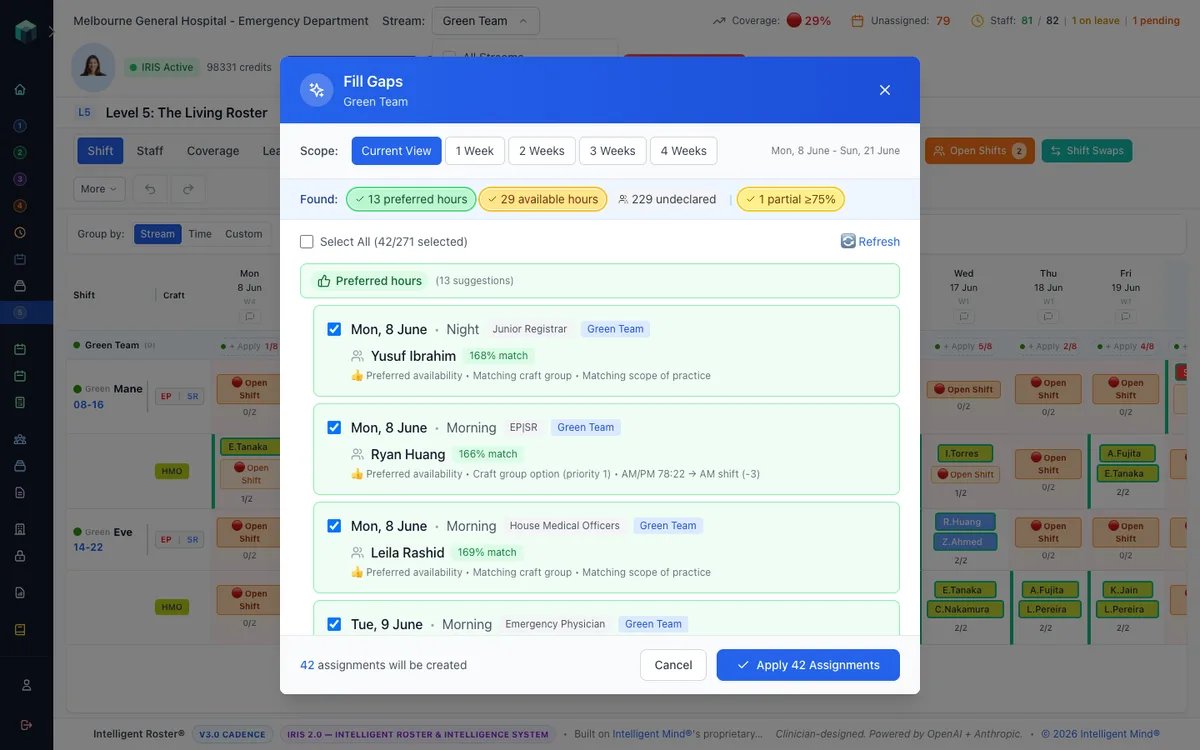
- Review the ranked suggestions grouped by priority tier
- Check or uncheck rows, then click Apply Selected
Nothing runs on open. When the modal opens it shows a "Scan for gaps" prompt instead of results — this lets you set the scope and pool filter first. After your first scan, changing the date scope re-runs automatically; changing the Scope this run filter needs a Re-scan click (a reminder appears).
When multiple streams are selected, the modal header shows "N streams" and gaps are gathered across all selected streams. Suggestions are fetched per stream and applied in bulk.
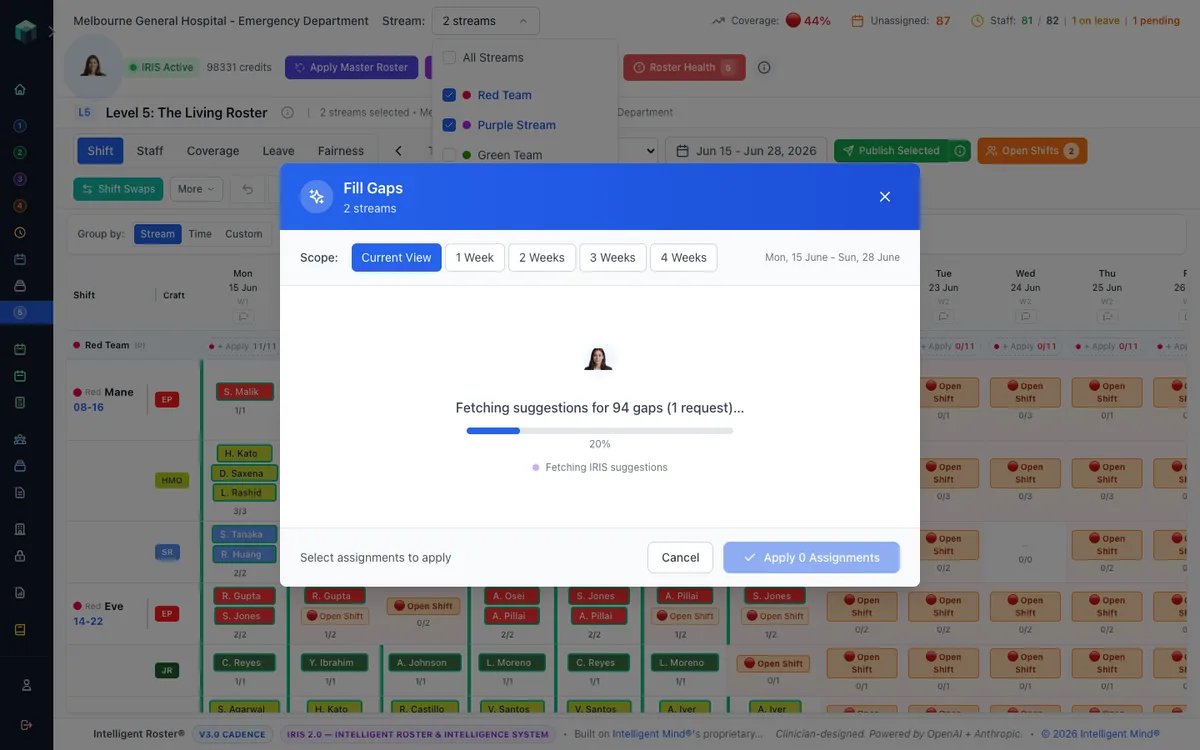
If every vacancy is already filled in the scope, IRIS reports "All positions are filled — no gaps to fill."
Scope this run — narrow the candidate pool
Scope this run is an optional pre-run filter (collapsed by default, just under the Scope selector). Use it to restrict who IRIS considers for this scan:
- Craft groups — only suggest staff in the selected craft group(s)
- Employment type — Full-time, Part-time, Casual, or Contract
- Specific staff — search and tick named people; "Only these staff will be considered for this run."
Combine facets (e.g. Part-time + 2 named RNs). Click Clear all filters to reset to All staff. The filter only limits the pool — it does not relax any hard safety rule.
Open Shift Requests are protected: if a staff member submitted a Pending open shift request but is excluded by your Scope this run filter, their request is left Pending — not declined. Only requesters inside the pool who genuinely fail an eligibility rule get an automatic decline. This is the same guard used by Generate with IRIS.
When Roster Builder scope enforcement is enabled, Fill Gaps is also limited to your permitted streams and craft groups (same as Generate with IRIS). See Roster Builder Permissions.
Priority tiers (how staff are ranked)
For each unfilled slot, IRIS ranks eligible staff in this order:
| Priority | Label | Meaning |
|---|---|---|
| 1 | Requested This Shift | Staff submitted an Open Shift Request for this vacancy |
| 2 | Preferred hours | Staff declared Preferred availability that covers this shift |
| 3 | Available hours | Staff declared Available availability that covers this shift |
| 4 | No hours declared | Eligible staff with no My Availability set for this time |
Click the tier badges at the top of the modal to select or deselect an entire group at once.
What is selected by default
- Open Shift Requests, Preferred, and Available suggestions are pre-selected (checked).
- No hours declared suggestions are shown but not selected — you must opt in explicitly, same philosophy as the Generate with IRIS preview.
Uncheck any row you do not want applied. Only checked assignments are written to the grid.
Open Shift Requests during Fill Gaps
Staff who submitted a Pending open shift request for a gap appear in the Requested This Shift tier when they pass all eligibility checks (craft group, scope, availability, leave, etc.).
- Eligible requesters are pre-selected like Preferred/Available suggestions
- Ineligible requesters may be Declined automatically when Fill Gaps runs, with an actionable reason on their request in Shift Deck → My Requests
- If an eligible requester is still under their contractual minimum and another candidate would otherwise miss out on hours, IRIS may assign the under-minimum staff member instead — check results before publishing
Tell staff to review My Requests after you apply Fill Gaps selections.
Both tools use IRIS, but the algorithm and intent differ:
| Generate with IRIS | Fill Gaps (Tactical Mode) | |
|---|---|---|
| Scope | Entire date range — all vacancies | Only unfilled slots |
| Goal | Balanced roster with fairness optimisation | Coverage first — fill holes without reshuffling existing assignments |
| Mode | Conservative — may leave gaps if no fair option exists | Tactical — more willing to suggest staff to close coverage |
| Availability match | Requires ≥90% shift coverage for preferred/available windows | Allows partial overlap (e.g. 60% of shift covered) and surfaces coverage % |
| Fairness | Strong weight on equitable distribution (weekends, nights, hours) | Weaker fairness weight — suggests whoever best fits the slot |
| Multi-stream | Processes all selected streams in one run | Processes all selected streams sequentially |
| Minimum hours | Strongly prioritises under-minimum staff (tier-first within each batch) | Same shared hours policy as Generate |
| Undeclared staff | Included in generation but not auto-selected in preview | Included as suggestions but not auto-selected |
| Preview UI | AI-Generated Roster Preview modal (date-grouped list) | Fill Gaps modal (tier-grouped, per-gap suggestions) |
| Best for | Blank or near-blank periods | Refinement after master roster, leave, or manual edits |
Hard rules always apply to both — minimum rest hours, craft group eligibility, scope of practice (All/Any match per vacancy), approved leave blocks, blocked availability, inactive periods, and maximum fortnight hours are never violated by IRIS. See Scope of Practice for how vacancy scope requirements work.
Partial availability (Fill Gaps only)
If a staff member's preferred or available window only partly overlaps a shift (e.g. available 08:00–12:00 for an 08:00–16:00 shift), Fill Gaps can still suggest them and shows the coverage percentage. Generate with IRIS requires near-full shift coverage and would skip that candidate.
This makes Fill Gaps useful when you need pragmatic coverage and can review partial matches manually.
Leave-aware hours
Fill Gaps accounts for approved leave when calculating fortnight hour targets. Staff on partial leave show adjusted hour projections so you can see if assigning them would push them near their max.
After applying
Applied assignments appear as draft (purple) cells on the Living Roster. Fill Gaps supports Undo immediately after apply — same pattern as Generate with IRIS, including the approximate 30-minute batch undo window for IRIS-applied assignments.
Run Roster Health next to catch any remaining conflicts, rule warnings, or coverage gaps.
Related guides
- The Intelligence Bar — where Fill Gaps lives alongside Apply Master Roster and Generate with IRIS
- How to Generate a Roster with IRIS — full-period generation and the AI preview modal
- Hard Rules vs Soft Rules — what IRIS can and cannot override in Tactical Mode